Your Summary page is your dashboard for managing, tracking, and getting paid for your event — everything you need is in one place.
Quick Actions
At the top of the page:
- New Session – Add another session to your event
- Cancel Event – Cancel your event
- Stop Ticket Sales – Immediately stop new tickets from being sold, without cancelling the event
- Preview – See how your event page looks to ticket purchasers (top right of the page)
NOTE: These buttons may be greyed out or unavailable in some cases — for example, if your event has already ended, or if ticket sales have already closed. If a button you expect to see isn't there, this is usually why.
Manage my event
From the left-hand menu:
-
Edit Event – Update event details
-
Notify Purchasers – Send email or SMS updates to everyone who bought a ticket
-
Event Questions – Create custom questions for attendees
-
Promote/Marketing – Access tools to promote your event
-
Record Offline Sales – Add manual ticket sales
-
Sales List – View and manage all orders
-
Check-ins / Claims – Manage attendee entry
-
Reports – Download sales and attendee reports
-
Sales Notification – Get updates on ticket sales as they happen
-
Waiting List – Manage your event's waitlist
-
Custom Page Design – Customise the look of your event page
Quick Actions
At the top of the page:
-
New Session – Add another session to your event
-
Cancel Event – Cancel your event
-
Stop Ticket Sales – Immediately stop new tickets from being sold, without cancelling the event
-
Preview – See how your event page looks to ticket purchasers (top right of the page)
Quick Links
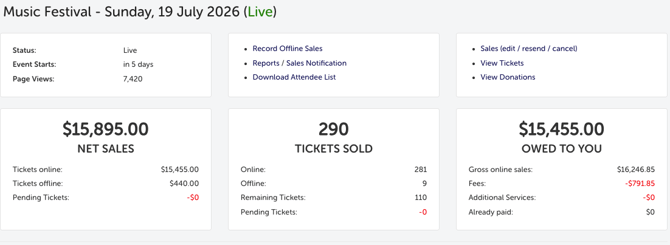
Next to your key event info, you'll also find shortcuts to:
- Record Offline Sales
- Reports / Sales Notification
- Download Attendee List
- Sales (edit / resend / cancel)
- View Tickets
- View Donations
Key event information
- Status – Shows whether your event is Pending, Live, Paused, Completed, or Cancelled
- Event Starts – Shows how many days remain until your event starts. Once your event has passed, this switches to show it's completed rather than counting down.
- Page Views – The number of times your event page has been viewed
Understanding your Sales figures
Net Sales
Your total sales, excluding booking fees. Broken down into:
- Tickets online – Sales made through your event page
- Tickets offline – Sales you've manually recorded yourself
- Pending Tickets – Tickets where checkout was started but not completed or paid for. These aren't counted as sold and don't affect your Net Sales total.
Tickets Sold
Total tickets sold, including both online and offline sales. Broken down into:
- Online – Tickets sold through your event page
- Offline – Tickets you've manually recorded
- Remaining Tickets – Tickets still available for purchase
- Pending Tickets – Tickets currently mid-checkout that haven't been completed or paid for yet
Tickets by type
Below the summary figures, you'll see a breakdown for each ticket type (for example, Final Release or Door tickets), showing net sales and tickets sold as a progress bar against your total ticket allocation for that type.

Understanding your Payout
Your Owed to You figure is made up of:
- Gross online sales – The total amount paid by ticket purchasers, including booking fees
- Fees – Booking and processing fees deducted from that total
- Additional Services – Costs for optional services you've chosen to use for this event, such as Notify Purchasers (email/SMS) fees or split payment fees
- Already paid – Any amount already transferred to you
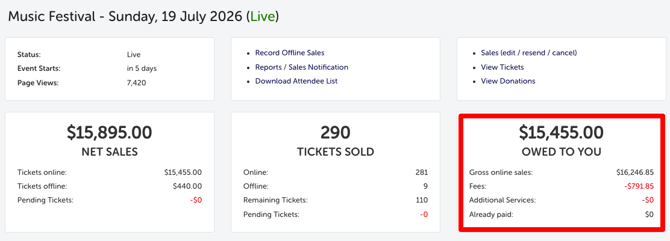
In short: Gross online sales − Fees − Additional Services = Owed to You. Once a payment is made, it appears under Already Paid, and Owed to You updates to reflect what's still outstanding.
If your Owed to You figure looks lower than expected, check whether you've used any optional paid services (like Notify Purchasers or split payments) or whether a recent payment has already moved into Already Paid — these are the most common reasons the numbers don't match what you expected.
Charts
Use the Start Date and End Date filters and select Update Charts Data to view your event's performance over a specific period.
- Total Sold Tickets – Total sales value split by online/offline, plus your number of ticket types, with a Sales Per Ticket Type donut chart
- Total Promo Codes Used – How many of your promo codes have been used and how many remain, with a Promo Codes Used donut chart
- Tickets Sold – A line graph of sales over time. Use the Unit filter to switch between daily/weekly/monthly views, and the View filter to focus on a specific ticket type
Check-ins
A live view of attendee check-ins for your event. Use the View filter to see check-ins by ticket type, and the donut chart shows your total checked-in count against total tickets sold.
Rebates
If your account is eligible for a rebate on this event, you'll see an info banner on your Summary page stating the estimated rebate amount that will be available once your event is marked Complete (for example, "A Charity rebate of $2.16 will be available on event completion").
Once your event is Complete and payment has been processed, the rebate appears as its own Rebate paid line in your Owed to You breakdown, and as a separate line item in your event's Transactions section.
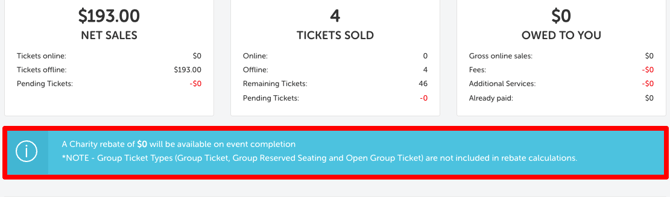
See our guide on how to claim your rebate for full details on how rebates are paid.
Most common scenarios and questions
Why do I have Pending Tickets, and do they count as sold?
-
Pending Tickets are ones where someone started checkout but didn't complete payment. They're not counted in your Net Sales or Tickets Sold totals.
What counts as an Additional Service?
-
Optional paid features you've chosen to use for this event, such as Notify Purchasers (email/SMS) or split payments. These are deducted from your Owed to You total alongside standard booking fees.
Why is my Owed to You lower than my Gross Online Sales?
-
Fees and any Additional Services you've used are deducted first. If you've also already received a payment, that amount moves to Already Paid and reduces what's still owed.
Does Tickets Sold include offline sales?
-
Yes — Tickets Sold combines both online and offline (manually recorded) sales.
Why can't I click Cancel Event, New Session, or Stop Ticket Sales?
-
These actions are unavailable in certain situations, such as after your event has ended or once ticket sales have closed.
What does the blue ribbon mean?
-
It shows your account has earned a rebate for that event.
Can I still see this data after my event is completed?
-
Yes — your Summary page remains available with all sales and payout data after your event ends.
Need more help?
If something on your Summary page still doesn't look right — for example, a payout figure you can't account for — contact our support team and let us know your event name and which figure looks incorrect.