If you've enabled individual ticket holder details for your event, you may need to update them later — for example, if a name was entered incorrectly, or a purchaser asks to change who's attending.
How to edit ticket holder details yourself, as the event organiser
- Log in to Sticky Tickets and open the event you're managing.
- Select Sales List (or select Sales from the Summary page).
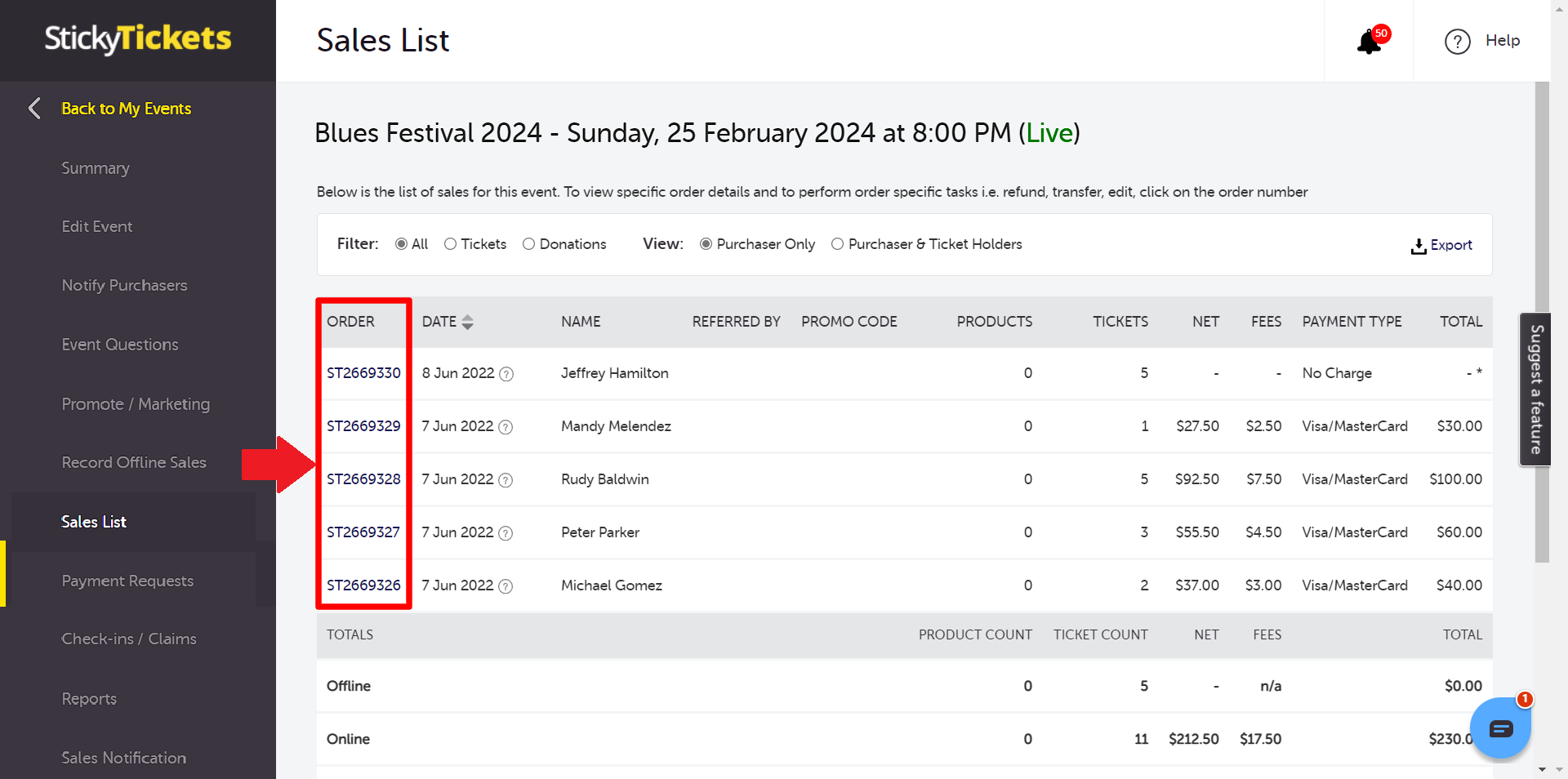
- Find the order you want to update and select the Order Number.
- On the Order Details page, select Edit Order.

- Make the necessary changes and select Save Changes.
- Select Back in the left menu to return to your list of sales.
This is one of several actions available from the Order Details page — see our guide on viewing and managing ticket sales and attendee details for cancelling, resending, or transferring an order.
Letting purchasers edit their own ticket details
Instead of making changes yourself each time, you can let purchasers update their own ticket holder details directly.
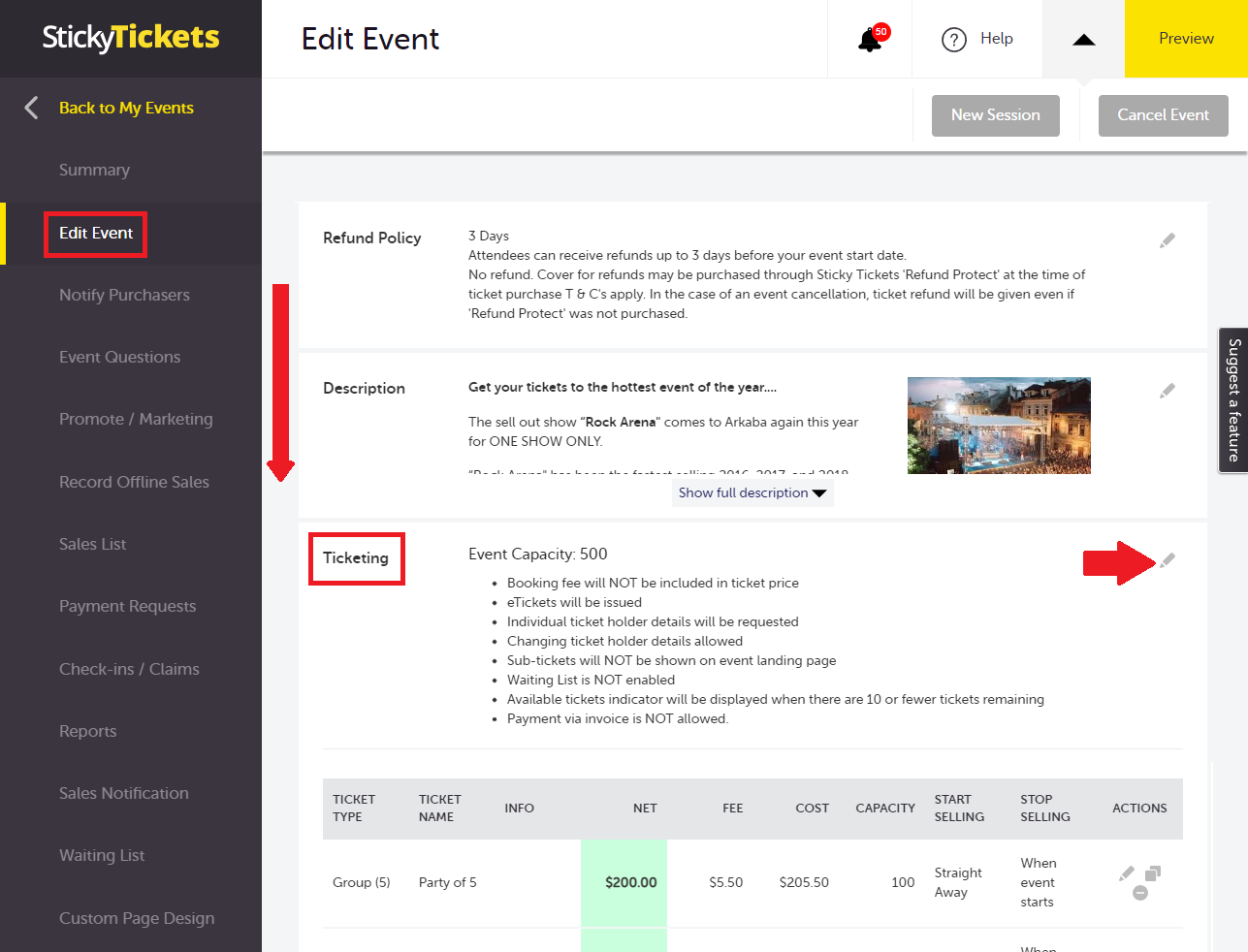
- Select Edit Event, scroll to the Ticketing section, and select the edit icon.
- Tick Edit Ticket Holder Details, then select Save Changes.
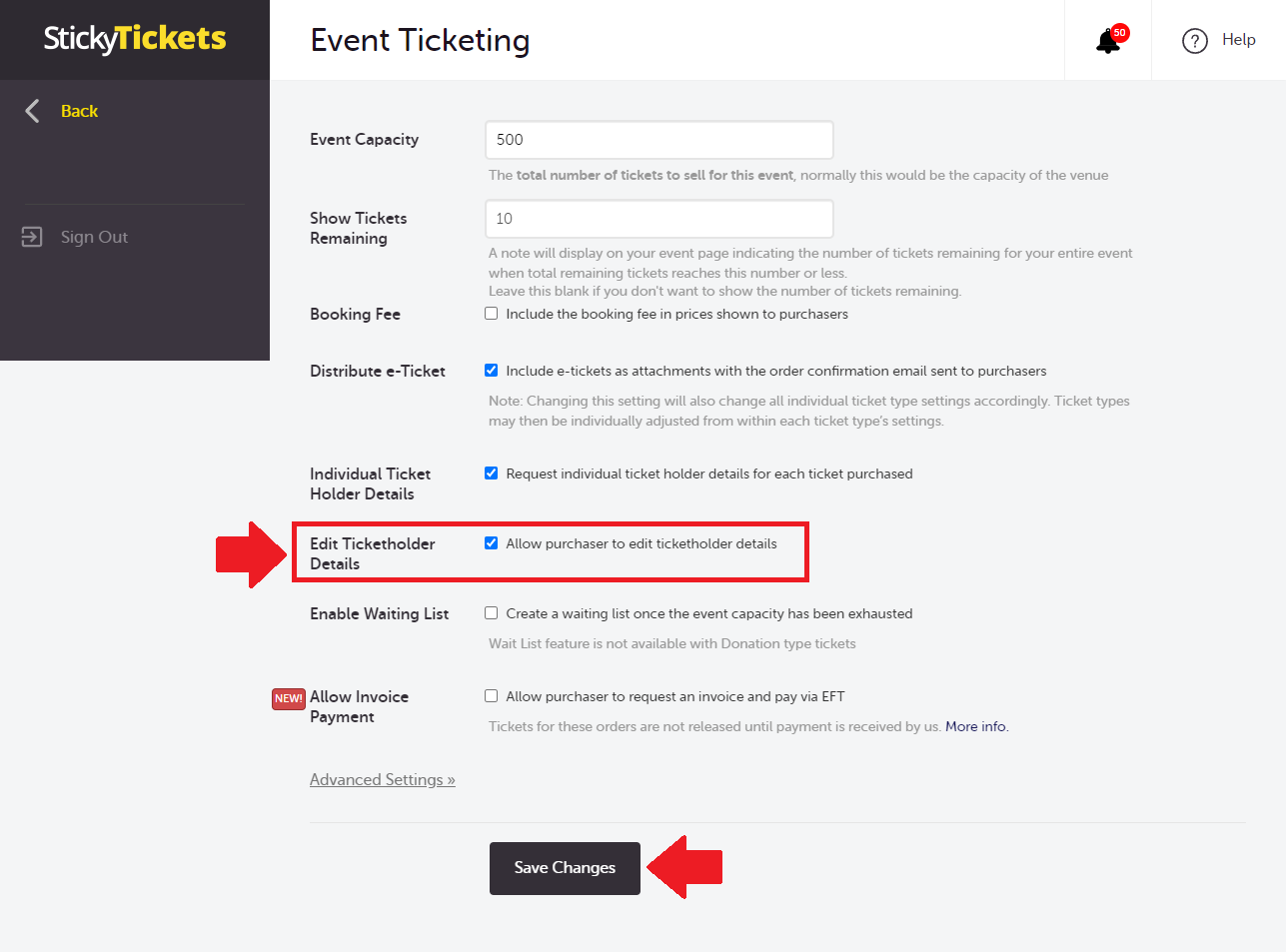
Note: This option is only available if Individual Ticket Holder Details is already enabled — you need to be collecting individual names per ticket before purchasers can edit them.
Once enabled, refer purchasers to stickytickets.com.au if they need to change a ticket holder's name or details themselves — see our guide on how to change the name on your ticket for the full self-service steps.
Most Common Scenario and Questions
The Edit Order option isn't visible or is greyed out.
-
Check that the order is still active and hasn't already been cancelled or fully refunded — Edit Order isn't available on cancelled orders.
I've enabled Edit Ticket Holder Details, but purchasers still can't see an edit option.
-
Confirm Individual Ticket Holder Details is also switched on — Edit Ticket Holder Details only works when individual names are being collected per ticket in the first place.
I can't find Individual Ticket Holder Details to enable it.
-
This setting is in the same Ticketing section, just above Edit Ticket Holder Details, on the Edit Event page.
Will the ticket purchaser be notified when I make this change?
-
No — updating ticket holder details doesn't automatically trigger a notification. If the purchaser needs an updated e-ticket, resend the order from the Sales List.
Does editing ticket holder details change the ticket's QR code?
-
No — the QR code and ticket validity stay the same. Only the name and details on the ticket are updated.
Can I edit multiple tickets in the same order at once?
-
Yes — the Edit Order page shows every ticket in that order, so you can update several ticket holders' details in one visit.
Can I still edit ticket holder details after the event has started or ended?
-
This depends on the order's status at that point — if you run into issues editing a past event's order, contact our support team.
What details can I actually edit — just the name, or other fields too?
-
You can update the ticket holder's name and company, along with any other individual ticket holder fields collected at checkout.
If I enable Edit Ticket Holder Details now, can purchasers edit tickets they bought before I turned it on?
-
Yes — the setting applies to all tickets for the event, including ones already sold, not just future purchases.
Need help?
If you have any questions about editing ticket holder details, contact our support team.