You can invite others to access your Sticky Tickets account and control what they can see and do by assigning permissions. This is useful if you have team members helping manage events, sales, or check-ins.
Watch how to invite users and assign permissions
Or follow the step-by-step instructions below.
💡Important Note
These definitions clarify the roles and relationships between individuals involved in the account-sharing process.
The term "Grantor" refers to an organiser who initiates an invitation to share their account. This individual extends access to another person for collaborative purposes.
The term "Grantee" pertains to the recipient of the invitation. This person has been invited to access another organiser's account, creating a collaborative link between the Grantor and Grantee.
HOW TO INVITE A USER
-
Go to User Access
-
Log in to your account
-
Go to Organiser Settings → User Access
-
-
Send an invitation
-
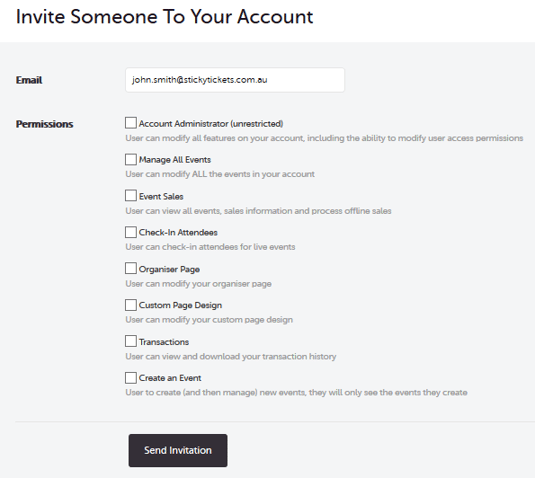
Click the Invite Someone to Your Account button
-
Enter the user’s email address
-
Select their access level (see below)
-
Click the Send Invitation button.
-
The user will receive an email invitation.
-
-
User accepts the invite
-
The invitation remains pending until accepted
-
Once accepted, the user will appear in your User Access list
-
You can edit or remove access at any time
-
USER ACCESS LEVELS
Choose what the user can do in your account:
🔓 Full access
-
Account Administrator
-
Full control of the account, including user permissions
-
🎟️ Event management
-
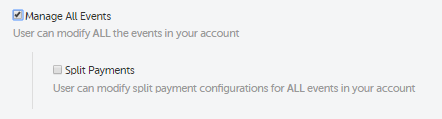
Manage All Events
-
Edit and manage all events in your account
-
-
Create Event
-
Create and manage their own events
-
💰 Sales and reporting
-
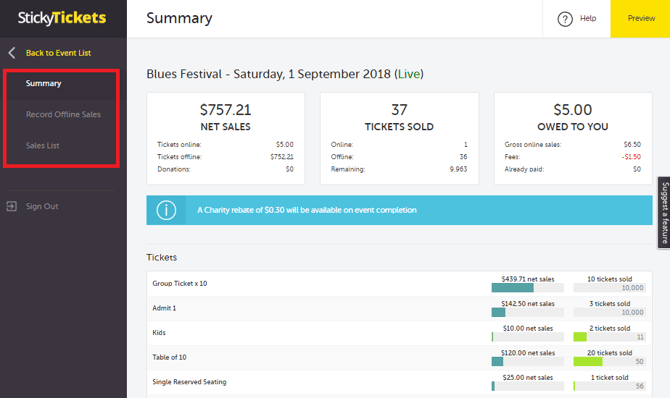
Event Sales
-
View sales data and process offline sales
-
-
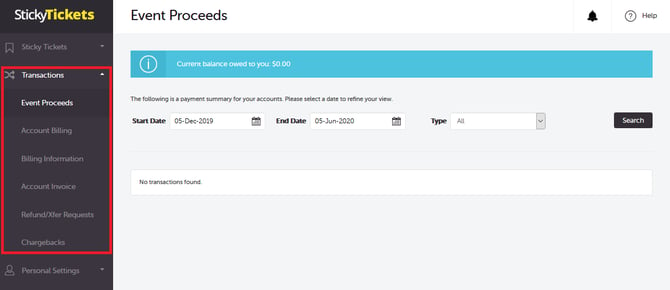
Transactions
-
View and download transaction history
-
📋 Event operations
-
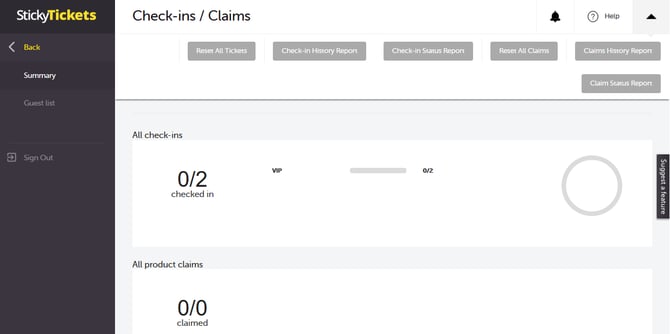
Check-in Attendees
-
Manage attendee check-ins during events
-
🎨 Content and branding
-
Organiser Page
-
Edit your organiser profile page
-
-
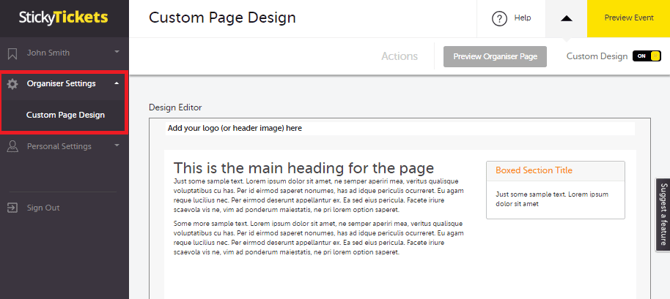
Custom Page Design
-
Update event page design
-
MANAGING USERS
-
To edit access, click the Edit link next to the user
-
To remove a user, uncheck all permissions
SWITCHING BETWEEN ACCOUNTS (FOR INVITED USERS)
-
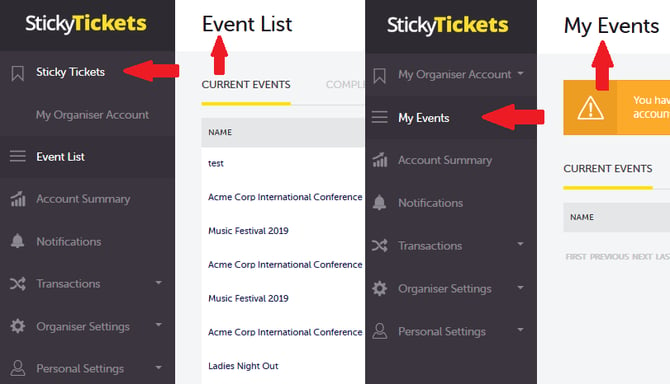
If a user has access to multiple accounts:
-
They can switch accounts from the top of the left menu
-
The current account name is shown at the top left
-
Need help?
If you need help setting up user access or permissions, contact our support team.