When a ticket purchaser asks to move their tickets from one of your events to another, the request appears in your Sticky Tickets account for you to approve or decline.
Finding a Transfer Request
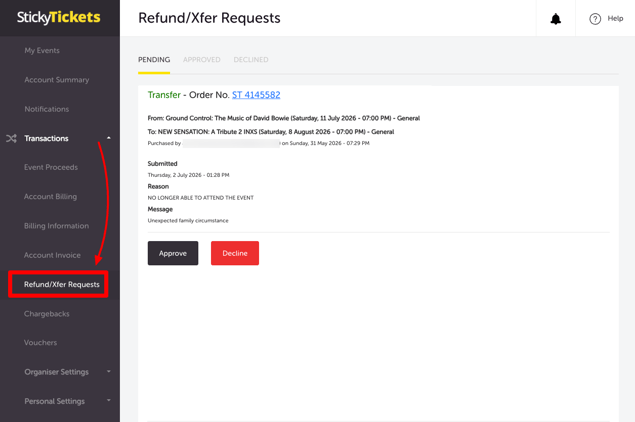
- Log in to your Sticky Tickets account and go to Transactions > Refund/Xfer Requests.
- Use the Pending, Approved, and Declined tabs to filter the list. This page shows both transfer and refund requests together.
- Each request shows:
- The order number (click it to view the full order)
- The event and session it's transferring from and to
- Who purchased the tickets and when
- When the request was submitted
- The purchaser's selected reason (for example, "No longer able to attend the event")
- Any additional message from the purchaser
NOTE: "Approved" and "Declined" are tab names used to filter the list — they aren't the buttons you click to take action. The actual action buttons are Approve and Decline, and they appear on each pending request.
How to approve a transfer request
- On the Pending tab, locate the request and select Approve.
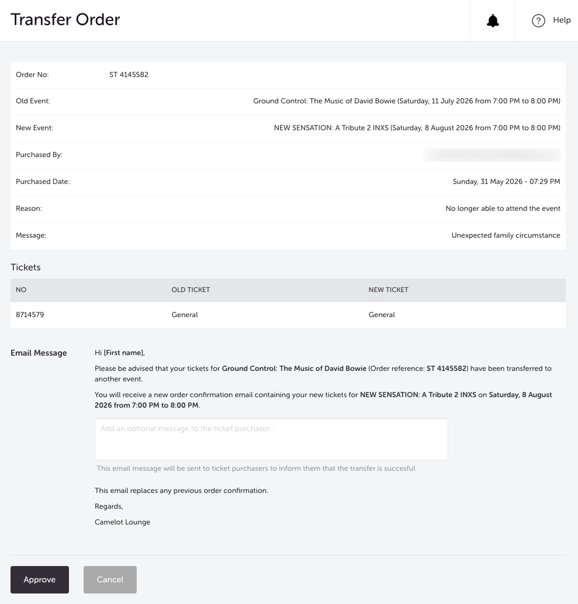
- You'll see a summary of the transfer, including a ticket-by-ticket breakdown of the old and new ticket types.
- Optionally, add a message to the purchaser — this appears in the confirmation email they receive.
- Select Approve to finalise the transfer, or Cancel to go back without making changes.
There's no fee for processing a ticket transfer, and you don't need to re-enter your account password to approve one.
How to decline a transfer request
- On the Pending tab, locate the request and select Decline.
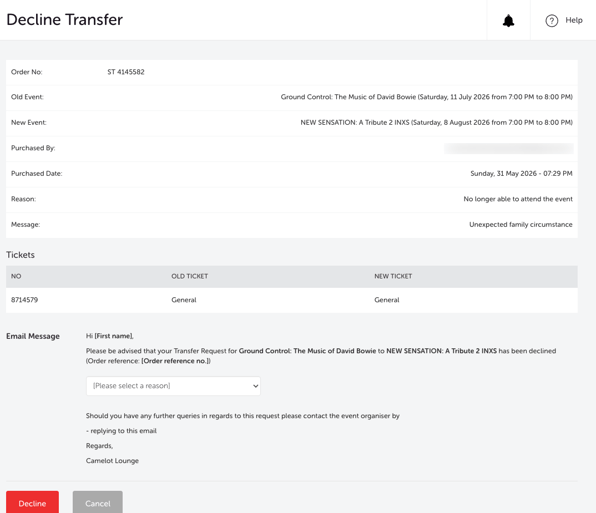
- You'll see the same transfer summary as above.
- Select a reason from the [Please select a reason] dropdown — this is required before you can proceed.
- Select Decline to finalise, or Cancel to go back without making changes.
What happens next
- If approved, the purchaser receives an email confirming their tickets have been transferred, along with a new order confirmation for the new event. This replaces their original order confirmation.
- If declined, the purchaser receives an email with the reason you selected, along with instructions to contact you directly if they have further questions.
Most common scenarios and questions
Does it cost anything to transfer a ticket to another event?
-
No — there's no fee for the organiser or the purchaser when processing a ticket transfer.
Do I need to enter my password to approve a transfer?
-
No. This differs from refund requests, which do require you to re-enter your account password before finalising.
Will the ticket purchaser be notified automatically?
-
Yes — an email is sent automatically whether you approve or decline the request.
Can I undo a transfer once I've approved it?
-
Once approved, the transfer is finalised and the purchaser's new order confirmation has been sent. If you need to reverse it, contact our support team.
What if the new event has a different ticket type available?
-
The summary page shows the old and new ticket type for each ticket in the order, so you can confirm exactly what the purchaser will receive before approving.
Where do I find refund requests instead of transfer requests?
-
Refund and transfer requests both appear on the same Transactions > Refund/Xfer Requests page — see our guide on cancelling tickets and issuing refunds for the refund-specific process.
I can't find a specific request.
-
Check you're on the correct tab — Pending (awaiting your action), Approved, or Declined (both already actioned).
I approved or declined the wrong request by mistake.
-
The best option is to manually transfer the order/ticket yourself from the Sales List tab.
Need more help?
If you have any questions about refund or transfer requests, contact our support team.