Sticky Tickets requires all events to have a refund policy configured before going live. You can set one policy that applies to all your events (a global policy), or set a different policy for each individual event.
Which setup do you need?
- Same policy for all your events → Set up a global refund policy
- Different policy per event → Set up an individual event policy
Important: Changes to a refund policy will not apply to tickets already sold. Any tickets purchased before a policy change will continue to follow the original policy. Review your policy carefully before going live.
Option 1 — Global refund policy (applies to all events)
A global refund policy applies automatically to all your current and future events. You can override it for individual events if needed.
Steps
- Go to Organiser Settings → Organiser Refund Policy tab.
- Click the Create Global Refund Policy button (upper right corner).
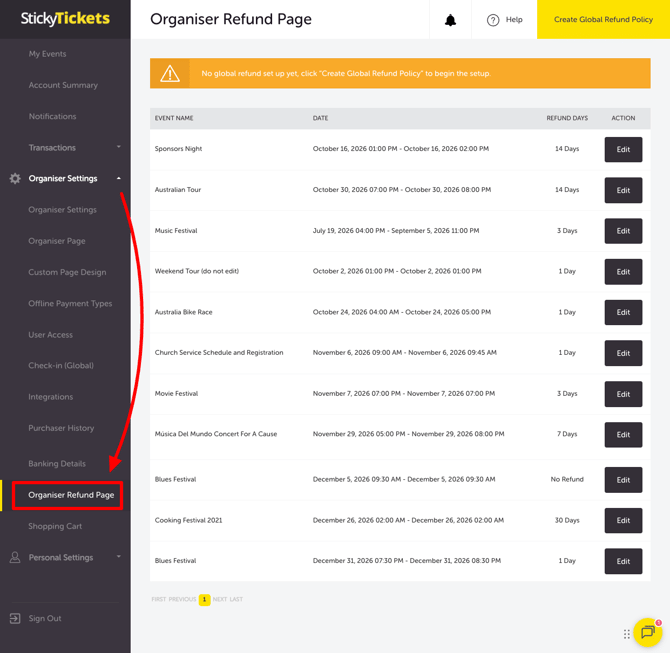
- Configure the following:
FIELD WHAT TO DO Refund days Select how many days before the event ticket purchasers can request a refund: No Refund, 1, 2, 3, 14, 30 days, or a custom number Secure My Refund This toggles automatically based on your refund timeframe — see the note below Refund Policy Reason Enter a short explanation of your policy (shown to ticket purchasers on the event page) Link Optional — add a URL to an external page with your full refund policy Document Optional — upload a PDF or Word document with your full refund policy - Choose which events the policy applies to:
- All Events — applies to all current events
- All Future Events — applies to events created after this policy is saved
- Or select specific events from the list
- Click the Save Changes button.
How your refund timeframe affects Secure My Refund
Secure My Refund is an optional protection ticket purchasers can add at checkout. Its availability is automatically controlled by your refund policy:
| Refund timeframe | Secure My Refund |
| No Refund |
Auto-activates. Cannot be removed. |
| 1-3 days | Auto-activates. Cannot be removed. |
|
4+ days |
Not active by default. Organiser can enable or keep as deactivated. |
Chargeback Risk Warning
If you select a No Refund policy: This may increase the risk of chargeback requests from ticket purchasers, which can result in additional fees charged to your account. It is strongly recommended to review the Competition and Consumer Act 2010 before selecting this option.
Consumer Rights note: Under the Australian Consumer Law, ticket purchasers may have a right to a refund if your event fails to meet consumer guarantees. These rights apply regardless of your stated refund policy and cannot be excluded or waived.
Option 2 — Individual event refund policy
Set a specific refund policy for one event. This overrides any global policy you have set for that event.
Steps
- Log in and open the event you want to configure.
- Click the Edit Event tab.
- Scroll down to the Refund Policy section.
- Configure the following:
FIELD WHAT TO DO Refund days Select how many days before the event ticket purchasers can request a refund Secure My Refund Auto-controlled by your refund timeframe — see the table above Refund Policy Reason Enter a short explanation of your policy Link Optional — add a URL to your full refund policy Document Optional — upload a PDF or Word document - Save the changes you made.
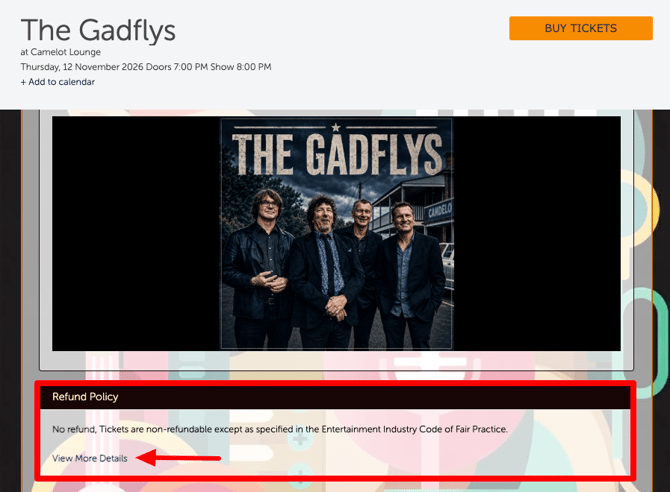
Reminder: Changes to the refund policy will not apply to tickets already sold. Only new purchases after the change will follow the updated policy.
Most common scenarios and questions
What is the difference between a global policy and an individual event policy?
-
A global policy applies automatically to all your events. An individual event policy applies to one specific event and overrides the global policy for that event. If you run events with different refund conditions, use individual event policies for the ones that differ and the global policy as your default.
Can I change the refund policy after tickets have been sold?
-
Yes — you can update the policy at any time. However, changes only apply to tickets purchased after the change. Tickets already sold continue to follow the original policy that was in place at the time of purchase.
What happens to Secure My Refund when I change my refund timeframe?
-
Secure My Refund activates automatically when your refund timeframe is set to No Refund or 1–3 days — and cannot be removed in these cases. When the timeframe is set to 4 or more days, Secure My Refund is not active by default, but you can choose to activate or deactivate it manually.
Can I override the global policy for a specific event?
-
Yes — set an individual event policy in that event's Edit Event tab. The individual policy takes priority over the global policy for that event.
What does the refund policy look like to ticket purchasers?
-
Your refund policy — including the reason text and any link or document you upload — is shown on your event page and referenced in ticket purchaser communications. [See screenshot above.]
What is the Ticket Upgrade feature mentioned in relation to the refund policy? [Verify with product team — confirm what the Ticket Upgrade feature does and when it is activated, then add a plain-language explanation here.]
Need more help?
If you need help setting up your refund policy, contact our support team.