Instead of manually downloading reports each time, you can schedule any standard or custom report to be generated and emailed to you automatically on a recurring basis.
Where to find this
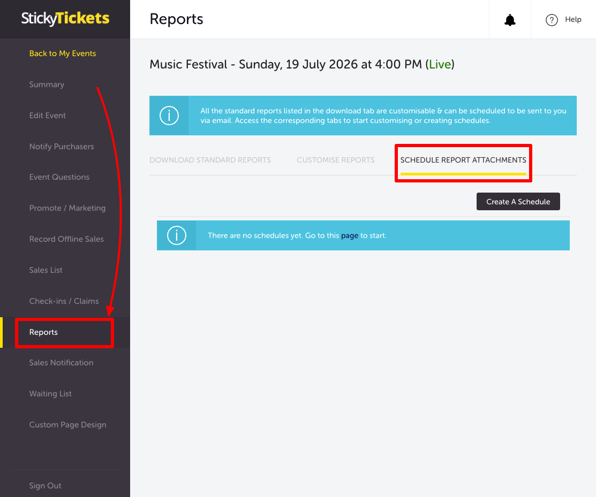
- Log in to your account and open the event you want to schedule reports for.
- Select Reports in the left panel.
- You'll see three tabs:
- Download Standard Reports – manually download a report on demand
- Customise Reports – configure custom report field selections
- Schedule Report Attachments – set up automated, recurring report emails (covered below)
- Select Schedule Report Attachments. If you've already created schedules for this event, they'll be listed here. Otherwise, select Create A Schedule.
Setting up a schedule
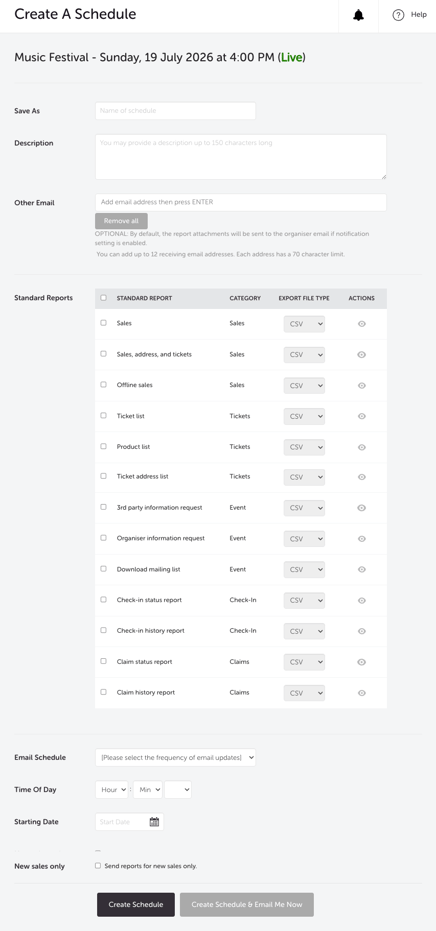
- Save As – give your schedule a name.
- Description – an optional note (up to 150 characters) describing the report.
- Other Email – by default, reports go to your registered organiser email if notifications are enabled. You can add up to 12 additional email addresses (each up to 70 characters) — enter an address and press Enter to add it.
- Standard Reports – tick which report(s) to include in this schedule. Available reports include:
| Report | Category |
| Sales | Sales |
| Sales, address, and tickets | Sales |
| Offline sales | Sales |
| Ticket list | Tickets |
| Product list | Tickets |
| Ticket address list | Tickets |
| 3rd party information request | Event |
| Organiser information request | Event |
| Download mailing list | Event |
| Check-in status report | Check-In |
| Check-in history report | Check-In |
| Claim status report | Claims |
| Claim history report | Claims |
Each report can be exported as a CSV file.
- Email Schedule – set how often the report is generated and sent (or select Disabled to turn the schedule off).
- Time Of Day and Starting Date – choose when the first (and subsequent) reports are generated and sent.
- New sales only – tick this to have each report include only sales made since the last report, rather than your full sales history each time.
Select Create Schedule to save it, or Create Schedule & Email Me Now to save it and receive an immediate copy right away.
Most common scenarios and questions
What's the difference between Customise Reports and Schedule Report Attachments?
-
Customise Reports lets you configure which fields appear in a custom report. Schedule Report Attachments lets you set up automatic, recurring email delivery of standard or custom reports.
Who receives the scheduled report by default?
-
Your registered organiser email, if notifications are enabled. You can add up to 12 additional recipients.
Can I get a report sent immediately instead of waiting for the schedule?
-
Yes — select Create Schedule & Email Me Now when setting it up.
What does "New sales only" do?
-
It limits each scheduled report to sales made since the previous report, rather than including your full sales history every time.
I just want to download a report once — do I need to set up a schedule?
-
No — see our guide on downloading your event's attendee and sales reports for one-off manual downloads.
Need more help?
If you have any questions about scheduling reports, contact our support team.