Sales Notification sends a summary of your event's ticket sales to one or more email addresses on a schedule you set, so you don't need to check your Summary page manually.
How to set it up
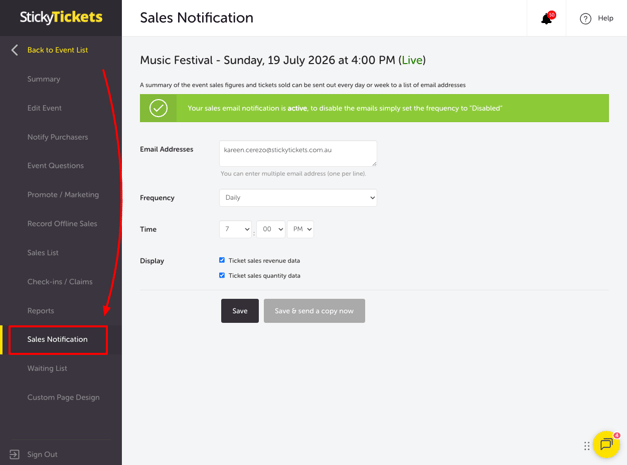
- Log in to your Sticky Tickets account.
- Select the live event you want to set up notifications for.
- Select the Sales Notification tab.
- Enter one or more Email Addresses (one per line).
- Set the Frequency — Daily, Weekly, or Monthly. Notifications are off by default (set to Disabled).
- Once you select a frequency, a Time field appears — choose the time you want the email sent.
- Under Display, tick which data to include:
- Ticket sales revenue data – net sales figures
- Ticket sales quantity data – tickets sold figures
- Select Save, or Save & send a copy now to send yourself a test email immediately.
To turn off notifications, set Frequency back to Disabled and save.
Multi-session events: two different settings
If your event has multiple sessions, you'll see two additional options. These control different things, so it's worth being clear on each:
- Apply to All Sessions – applies the notification settings you've configured (email addresses, frequency, display options) across every session, so you don't have to set each one up individually.
- Report on All Sessions – changes what's in the report. Instead of only covering the session you're currently viewing, the email includes sales figures broken down by each session of the event.
You can use either independently, or both together — one controls how the notification is set up, the other controls what data it reports on.
What's included in the email
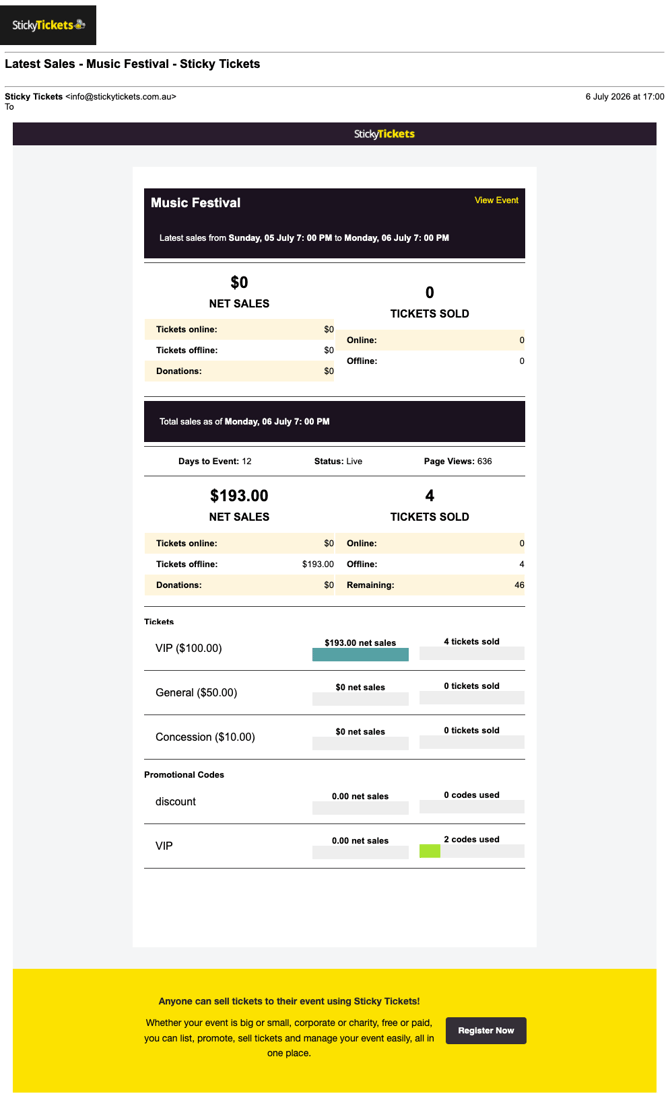
Each notification email includes two sections:
- Latest sales – a summary of sales and tickets sold since your last report (broken into online and offline, plus donations if applicable)
- Total sales – your running totals to date, including days remaining until your event, event status, page views, net sales, tickets sold, remaining tickets, a per-ticket-type breakdown, and promotional code usage
Note: Sales notification emails stop automatically once your event has concluded.
Most common scenario and questions
How do I turn off sales notifications?
-
Set the Frequency dropdown to Disabled and select Save.
Can I test the email before turning it on properly?
-
Yes — select Save & send a copy now to receive a copy immediately with your current settings.
What's the difference between Apply to All Sessions and Report on All Sessions?
-
Apply to All Sessions copies your notification settings across every session. Report on All Sessions changes the email content to include a breakdown for every session, rather than just the one you're viewing.
Do notifications continue after my event ends?
-
No — sales notification emails stop once your event has concluded.
Need more help?
If you have any questions about sales notifications, contact our support team.