You can control whether your event appears in Sticky Tickets search results or is kept private and accessible only by direct link. You can also control whether attendees can share the event on Facebook and whether attendee names are displayed on the event page.
How to Access the Privacy settings
- Log in and go to My Events.
- Open the event you want to configure.
- Click the Edit Event tab.
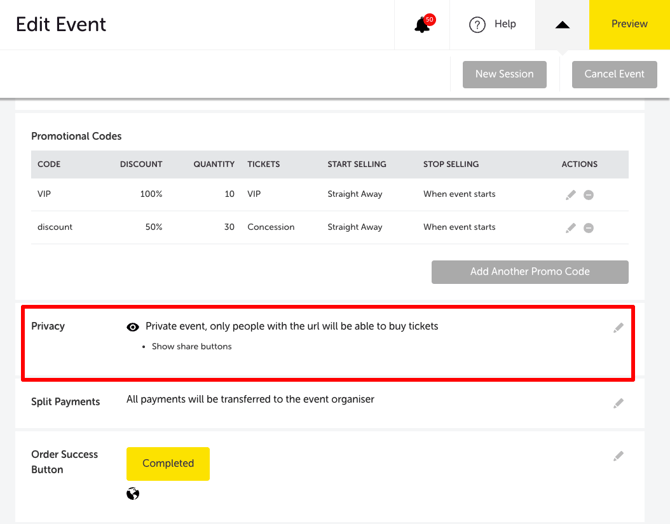
- Scroll down to the Privacy section and click the edit (pencil) icon. The Event Privacy page opens.
Visibility Options
| OPTIONS | WHAT IT MEANS |
| Public Event | Your event will be promoted by Sticky Tickets and listed in search results on stickytickets.com.au. Anyone can find and purchase tickets. |
| Private Event | Your event will not appear in search results. Ticket purchasers will need the direct event URL to find and purchase tickets. |
Select your preferred option and configure the additional settings below.
Additional Settings
Search Categories (Public events only)
-
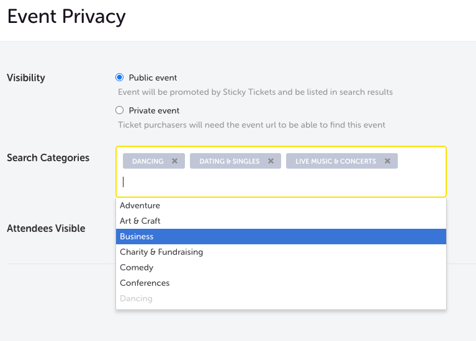
When your event is set to Public, a Search Categories field appears. Select one or more categories that best describe your event — these help ticket purchasers find your event when browsing by category on stickytickets.com.au.
-
Click inside the field and choose from the dropdown list. You can add multiple categories. To remove a category, click the × next to its tag.
TIP: For your event image to appear in search results on the Find Tickets page, make sure you have uploaded an image in the Description section of your event editor.
Allow Sharing
-
Tick "Allow attendees to share the event on Facebook" to enable a Facebook share button on your event page. This lets attendees promote your event to their network.
-
This option is available for both public and private events.
Attendees Visible
-
Tick "Show attendees names on the event page" to display a list of attendee names on your event page.
NOTE: Attendees can still choose to remain anonymous regardless of this setting.
Tips to improve discoverability
Beyond your visibility setting, a few things help people actually find your event once it's Public:
- Use clear, descriptive language and relevant keywords in your event name and description — this helps your event surface in searches, not just when browsing by category.
- Share your event's unique URL directly through flyers, invitations, or social posts to drive traffic straight to your event page — this works regardless of whether your event is Public or Private.
Click Save Changes to apply your privacy settings. Your event page will reflect the updated visibility and settings immediately.
Most Common Scenarios and Questions
My event isn't showing up in search results.
-
Check that your event is set to Public in the Privacy settings. If it's set to Private, it won't appear in search results. Also confirm that your event status is Live — Pending events are not shown publicly regardless of privacy settings.
I want to share my event with a select group but not make it public.
- Set the event to Private and share the event URL directly with the people you want to invite. Only ticket purchasers with the link will be able to access and purchase tickets.
Can I change from private to public after the event is live?
-
Yes — you can update the privacy setting at any time. Changes take effect immediately.
If I set my event to private, will existing ticket purchasers still be able to access their tickets?
-
Yes — switching to private only affects discoverability. Existing ticket purchasers can still access their tickets through the My Tickets page.
Does a private event still appear in my organiser page?
-
This depends on your organiser page's own privacy settings. Your organiser page has separate controls that determine whether it displays both public and private events, or public events only. You can adjust this in your organiser page settings.
Can I control which categories my event appears in on the Sticky Tickets website?
-
Yes — use the Search Categories field when your event is set to Public. Select all categories that apply to help ticket purchasers find your event when browsing.
Need more help?
If you need help configuring your event's visibility, contact our support team.