Custom Page Design lets you give your event page a unique look — with your own logo, background image or video, and custom colours for headings, buttons, and links. Your event page design is applied independently from your organiser page design.
How to access Custom Page Design
- Log in and open your event.
- In the left sidebar, click Custom Page Design.
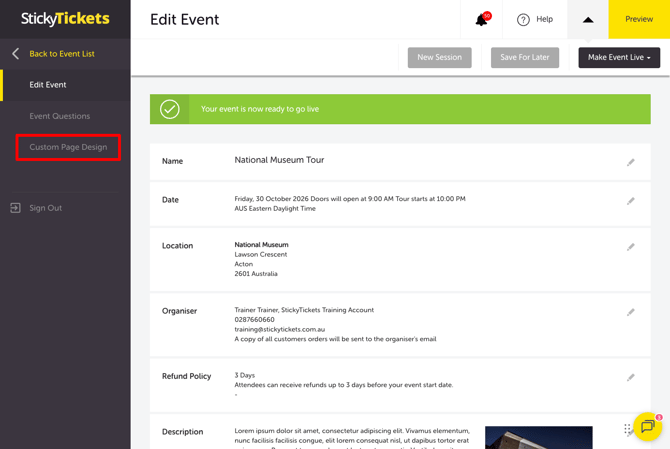
- Toggle Custom Design to ON in the upper right of the page.
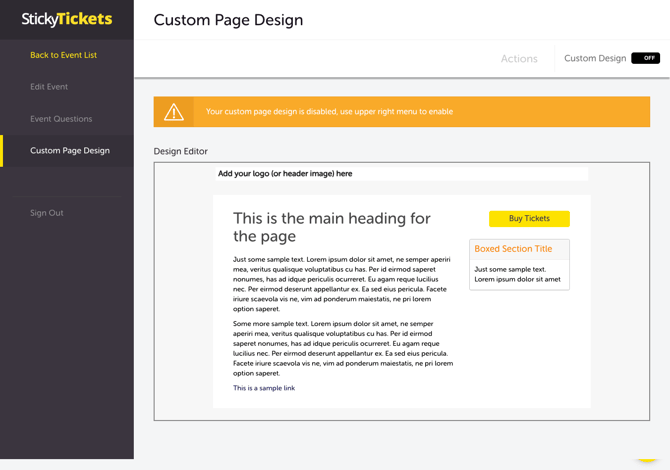
Once enabled, the Design Editor shows a live preview of your event page layout with five editable zones.
How to Edit Each Design Area
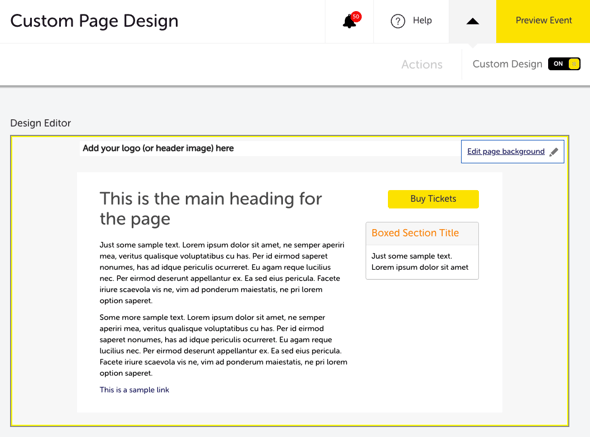
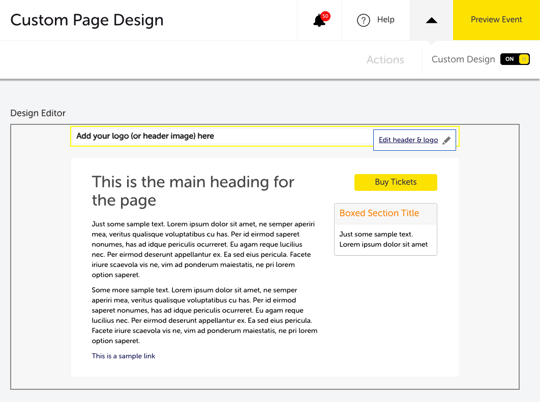
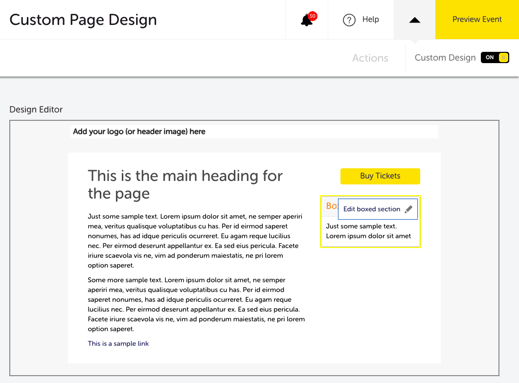
The Design Editor uses a hover-to-edit interaction. Move your cursor over a zone in the preview — it will highlight with a yellow border, and an Edit button will appear. Click the Edit button to open that zone's settings.
There are five editable zones:
1. Page background
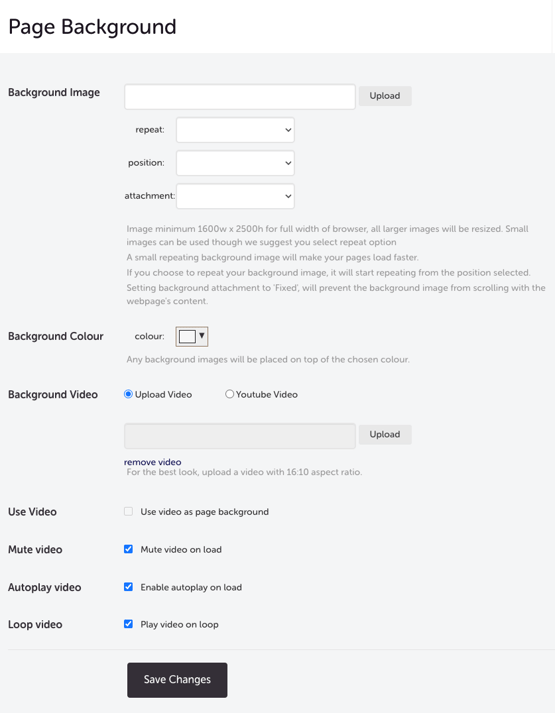
How to access: Hover over the outer area of the Design Editor preview (the area surrounding the main content box). Click Edit page background.
| SETTINGS | WHAT IT DOES |
| Background Image | Upload an image as the page background. Minimum size: 1600w × 2500h px for full browser width. Set repeat, position, and attachment as needed. |
| Background Colour | Set a solid background colour. Images are placed on top of this colour. |
| Background Video | Upload a video or use a YouTube link. Recommended aspect ratio: 16:10. |
| Use Video | Tick to enable the video as the page background. |
| Mute / Autoplay / Loop | Control playback behaviour. |
NOTE Autoplay may not work on some browsers due to built-in restrictions. In some cases, muting the video will allow it to autoplay.
Click Save Changes when done.
2. Header
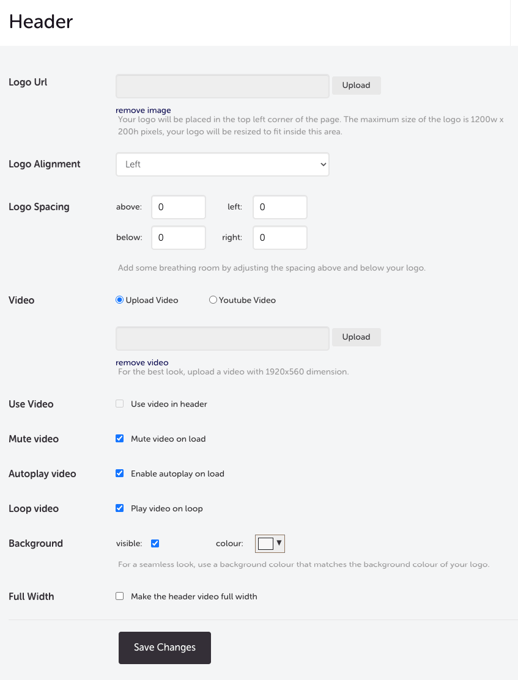
How to access: Hover over the header area at the top of the Design Editor preview ("Add your logo or header image here"). Click Edit header & logo.
| SETTINGS | WHAT IT DOES |
| Logo Url | Upload your logo image. Maximum size: 1200w × 200h px — larger images will be resized. |
| Logo Alignment | Set the logo position: Left, Centre, or Right. |
| Logo Spacing | Add padding above, below, left, and right of the logo. |
| Video | Upload a header video or use a YouTube link. Recommended size: 1920 × 560px. |
| Video | Tick to display the video in the header. |
| Use Video | Mute / Autoplay / LoopControl header video playback. |
| Background | Toggle visibility and set the header background colour. For a seamless look, match this to your logo's background colour. |
| Full Width | Tick to make the header video span the full page width. |
Click Save Changes when done.
3. Main content
How to access: Hover over the main content area (the white content box with the page heading and body text). Click Edit main content.
| SETTINGS | WHAT IT DOES |
| Page Heading | Set the colour of the main event page heading. Use a dark colour for visibility on a white background. |
| Border | Set the width, style, and colour of the border separating the content area from the background. Set the width to 0 to remove the border. |
| Content Spacing | Set top and bottom padding (in px) between the content area and the header/footer. This reveals the background above and below the content area. |
| Background | Set the content area background colour. |
| Text | Set the body text colour. |
| Link | Set the colour of hyperlinks in the content area. |
Click Save Changes when done.
4. Boxed Section
How to access: Hover over the Boxed Section panel on the right side of the Design Editor preview. Click Edit boxed section.
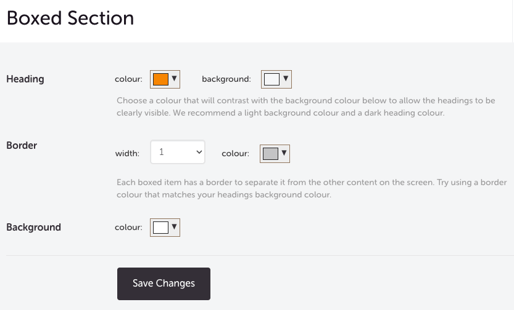
The Boxed Section controls the appearance of panels such as the organiser contact details and the refund policy box.
| SETTINGS | WHAT IT DOES |
| Heading — colour | Text colour for box headings. Use a colour that contrasts with the heading background. |
| Heading — background | Background colour behind box headings. Recommended: light background with dark heading text. |
| Border — width | Width of the border around each box. |
| Border — colour | Border colour. Try matching this to the heading background for a cohesive look. |
| Background | Background colour of the box content area. |
Click Save Changes when done.
5. Buy Tickets button
How to access: Hover over the Buy Tickets button in the Design Editor preview. Click Edit buy button.
| SETTINGS | WHAT IT DOES |
| Text | Colour of the button label text. |
| Background | Background colour of the button. |
Click Save Changes when done.
Previewing your Design
Click Preview Event (top right of the Custom Page Design page) to see how your event page looks to ticket purchasers before going live.
Important note — event design vs global design
If both your global organiser page design and this event's custom design are enabled, the event page design takes precedence for this specific event. All other events continue to use the global design unless they have their own custom design enabled.
To set up a global design that applies to all your events by default, see: How to set up a global design for all your event pages.
Most Common Scenarios and Questions
My custom design isn't showing on the event page.
-
Check that the Custom Design toggle is set to ON in the upper right of the Custom Page Design page. If the toggle is OFF, the default design is shown even if settings have been configured.
I can't find the Edit button for a zone.
-
Move your cursor slowly over the relevant zone in the Design Editor preview — the yellow highlight and Edit button appear on hover. If you're using a touchscreen device, try tapping the zone.
My background video isn't autoplaying.
-
This is a known browser restriction. Try enabling the Mute video on load setting — muting often allows autoplay to work on browsers that block it by default.
My logo looks stretched or too large.
-
Make sure your logo image is within the maximum dimensions of 1200w × 200h px. Images larger than this are automatically resized to fit.
Can I use a different design for each of my events?
-
Yes — Custom Page Design is configured per event. Each event can have its own design enabled independently.
Can I turn off my custom design and go back to the default?
-
Yes — toggle Custom Design to OFF in the upper right of the Custom Page Design page. Your settings are saved, but the default Sticky Tickets design will be shown until you re-enable it.
Does the custom design apply to the checkout pages too, or just the event page?
-
The custom design applies to all pages during the booking process — including the ticket selection and checkout pages, not just the main event landing page.
Need more help?
If you need help customising your event page design, contact our support team.