You can send notifications immediately or schedule them for a later date.
💡BEFORE YOU START
-
Notifications are sent from the Notify Purchasers tab
-
Email and SMS notifications incur a small fee
-
SMS notifications require available account credit
HOW TO CREATE A NOTIFICATION
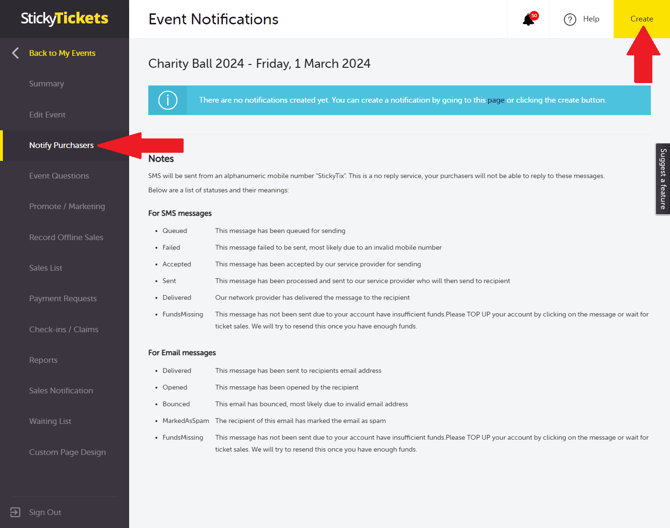
Step 1: Open the Notify Purchasers tab
-
Log in to your account and open your event
-
In the left panel, go to Notify Purchasers tab then click the Create button
Step 2: Choose your notification type
You can send:
-
Email notifications
-
SMS notifications
You can also:
-
send immediately
-
schedule for later
-
automatically send to future purchasers
📧 Sending an Email Notification
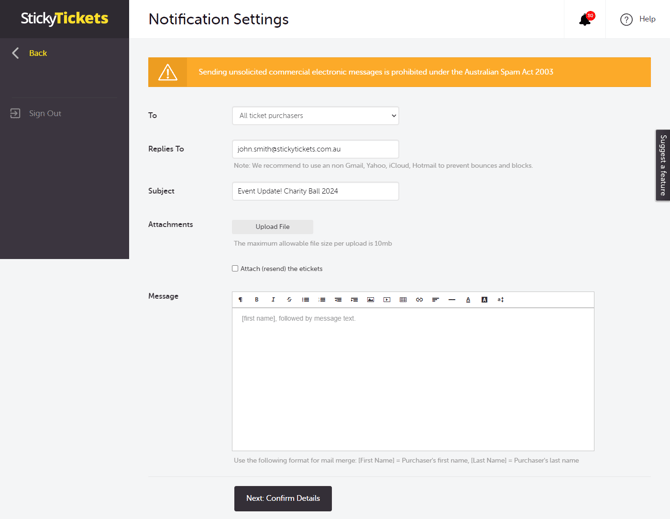
Complete the following fields:
-
Recipients
-
Choose either All Ticket Purchasers, or specific ticket types (e.g. VIPs, sponsors)
-
-
Reply-to email
-
Enter the email address where replies should be sent.
-
-
Subject
-
Add the email subject line.
-
-
Attachment (optional)
-
Upload a file or image to include with the email.
-
Message
-
Write your email content.
-
Step 3: Review and send
-
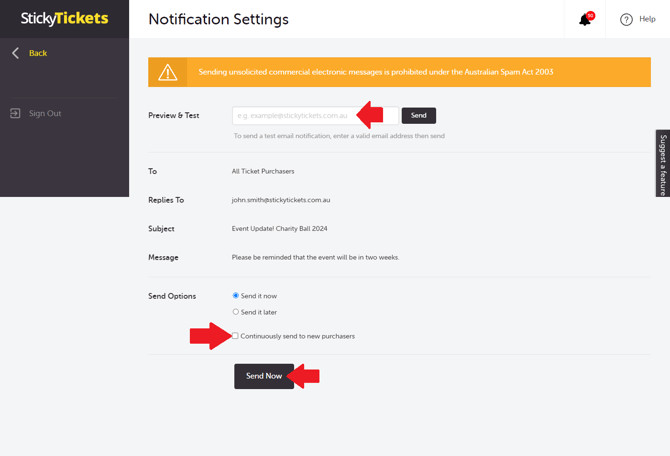
Click Next: Confirm Details button
-
Review the notification summary
-
Send a test email if needed
-
Choose to:
-
send now
-
schedule for later
-
send automatically to future purchasers
-
📱Sending an SMS Notification
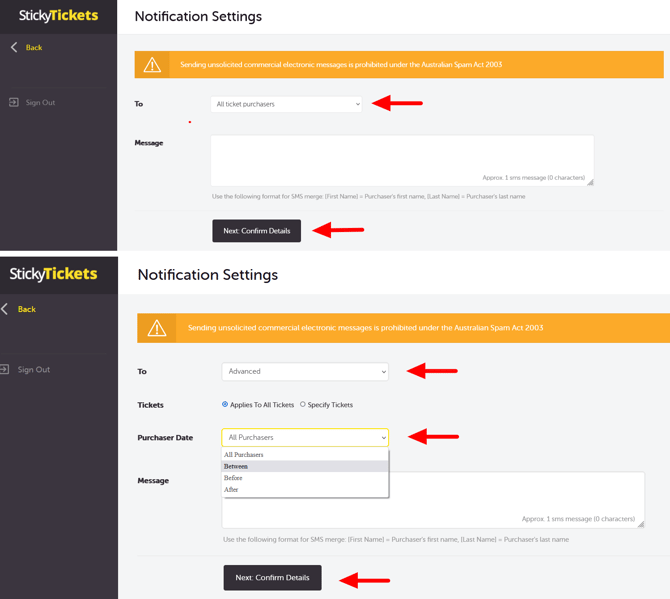
Choose:
-
all purchasers, or
-
specific ticket types using advanced filters
⚠️ IMPORTANT SMS LIMITS AND COSTS
-
SMS messages cost $0.10 per SMS and are limited to 160 characters per message
-
Messages longer than 160 characters may be sent as multiple SMS messages and incur additional charges.
SMS Replies
-
SMS notifications are sent from the Sticky Tickets platform and cannot receive replies
-
If you need attendees to respond, use email notifications instead
💳 ADDING FUNDS FOR NOTIFICATIONS
If your account does not have enough credit:
-
Click Top-Up from the notification warning Or go to:
-
Transactions → Account Billing → Top-Up
You’ll need to:
-
Enter your credit card details
-
Choose a top-up amount
⚠️ Credit card details are not stored for security reasons.
📊 CHECK NOTIFICATION STATUS
After sending, you can:
-
view delivery status
-
edit notifications
-
stop sending
-
delete notifications
📱 SMS Status Meanings
| Status | Meaning |
|---|---|
| Queued | Waiting to send |
| Failed | Could not be delivered |
| Accepted | Accepted by provider |
| Sent | Sent to provider |
| Delivered | Successfully delivered |
| Funds Missing | Insufficient account credit |
📧 Email Status Meanings
| Status | Meaning |
|---|---|
| Delivered | Successfully sent |
| Opened | Recipient opened the email |
| Bounced | Invalid email address |
| Marked as Spam | Recipient marked as spam |
| Funds Missing | Insufficient account credit |
💡 TIPS
-
Send reminder emails 24–48 hours before your event
-
Use ticket filters for VIP or sponsor communications
-
Keep SMS messages short to reduce costs
Need help?
If you need help sending notifications or managing account credit, contact our support team.