Sticky Tickets generates real-time reports for your event that update automatically with every purchase. You can download your attendee list at any time — before, during, or after the event — for check-in management, name badges, catering planning, or post-event follow-up.
How to download the attendee list
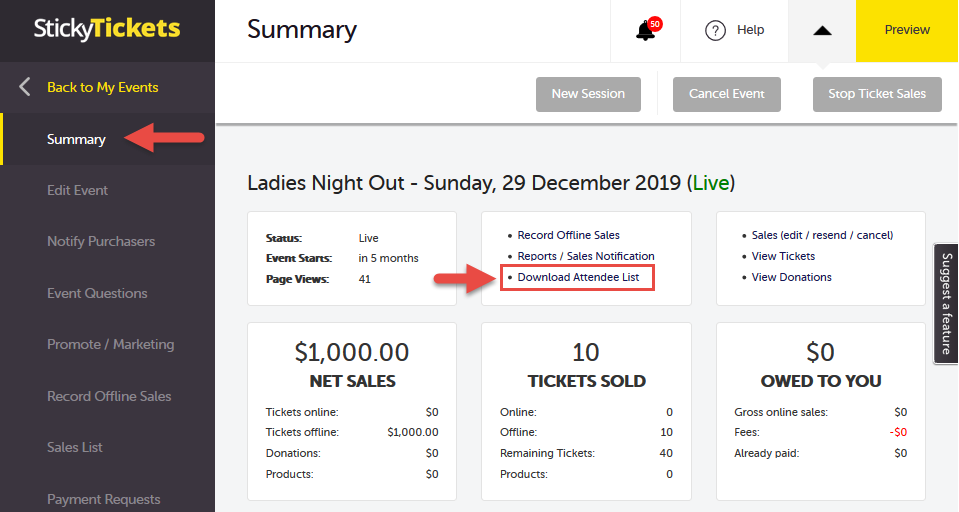
Option 1 — From the Event Summary page
- Log in and go to My Events.
- Open the event you want the list for.
- On the Summary tab, click Download Attendees List.
- The report downloads as a CSV file, which can be opened in Excel, Google Sheets, or any spreadsheet application.
Option 2 — From the Reports page
- Log in and go to My Events.
- Open the event you want the list for.
- Click Reports in the left sidebar.
- Select the report type you need and download as a CSV file.
What's in the attendee list
The Ticket List report includes the following for each ticket holder:
- First Name
- Last Name
- Ticket Type purchased
- Ticket Number
- Order ID (may show as a duplicate for purchasers who bought more than one ticket)
- Any custom questions added to each ticket type (if configured)
Available report types
| Report | What it includes | Best for |
| Ticket List | Ticket holder names, ticket types, ticket numbers, order IDs, and custom ticket questions | Check-in lists, name badges, door management |
| Ticket Address List | Ticket holder and purchaser address details | Postal or contact lists |
| Export Sales, Address & Tickets | Full export including prices, fees, purchaser details, and all custom question responses | Accounting, detailed post-event analysis |
Most common scenarios and questions
The CSV file looks disorganised when I open it.
-
Open the file using the Import or Open function in Excel or Google Sheets rather than double-clicking — this gives you more control over how the columns are parsed. Select "Comma" as the delimiter when prompted.
The attendee list doesn't include all ticket purchasers.
-
Check that you're looking at the Ticket List report, not just the Summary view. The Summary page shows totals; the full Ticket List includes one row per individual ticket.
Can I download the attendee list while the event is still running?
-
Yes — reports update in real time as purchases are made. You can download the list at any point before, during, or after the event.
Does the list include ticket purchasers who bought offline tickets?
-
Yes — offline sales are included in your event's sales data and will appear in the downloaded reports.
Can I see which attendees have been checked in?
-
Check-in status is managed through the Check-in App. See: How to add and manage Check-in App operators.
Can I filter the report by ticket type?
-
The CSV export includes a Ticket Type column, so you can filter by ticket type after opening the file in Excel or Google Sheets.
Need more help?
If you need help accessing your reports, contact our support team.