Promotional codes let you offer discounted tickets to specific groups — members, sponsors, VIPs, staff, or early registrants. Ticket purchasers enter the code at checkout to unlock the discounted price.
How to Create a Promotional Code
Step 1 — Go to the Promotional Codes section
- Log in and go to My Events.
- Open the event you want to add a promo code to.
- Click the Edit Event tab.
- Scroll down to the Promotional Codes section — it is below the Tickets and Seating Plan sections.
- Click Create A Promo Code.
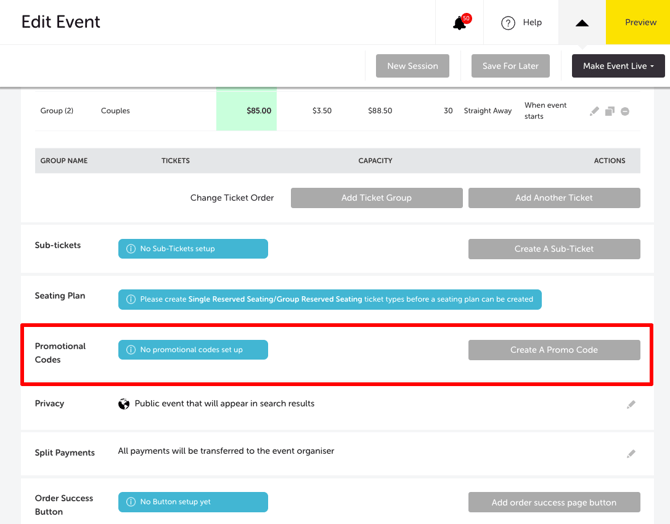
The Add Promotional Code page opens.
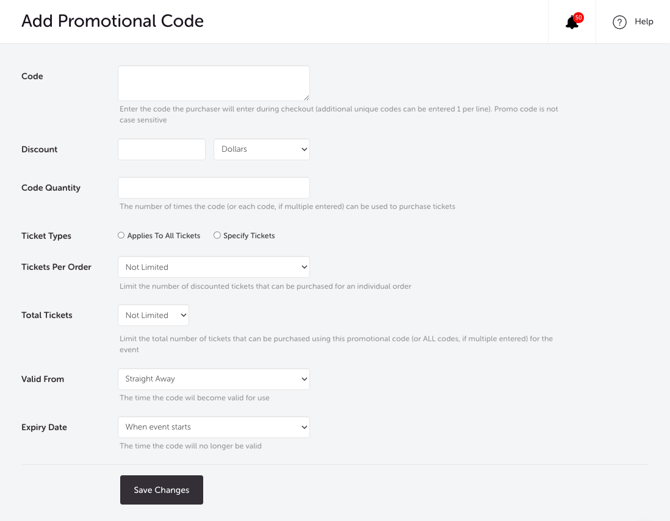
Step 2 — Configure your promo code
Complete the fields below. All fields except Tickets Per Order and Total Tickets are required.
| FIELD | WHAT TO ENTER |
| Code | The code ticket purchasers will enter at checkout (e.g. VIP, MEMBER2026). Codes are not case sensitive. To create multiple codes at once, enter each code on a new line — you can paste a column of codes directly from Excel. |
| Discount | The discount amount. Choose Dollars for a fixed amount off the ticket price, or Percentage for a percentage discount. |
| Code Quantity | The number of times this code (or each code, if multiple are entered) can be used to purchase tickets before it is exhausted. |
| Ticket Types | Select Applies To All Tickets to apply the discount to every ticket type, or Specify Tickets to choose specific ticket types. |
| Tickets Per Order | Optional. Limits the number of discounted tickets a ticket purchaser can include in a single order. This limit is shown to the ticket purchaser at checkout. |
| Total Tickets | Optional. Limits the total number of tickets that can be purchased using this code (or across all codes, if multiple are entered) for the event. |
| Valid From | When the code becomes active. Select Straight Away to activate immediately, or set a specific date and time. |
| Expiry Date | When the code stops being valid. Select a predefined option (e.g. When event starts) or set a specific date and time. |
Running a multi-session event? A checkbox appears below the form to apply the promo code across all sessions. Tick it if you want the code to work for every session — otherwise it will only apply to the current session.

Step 3 — Save your code
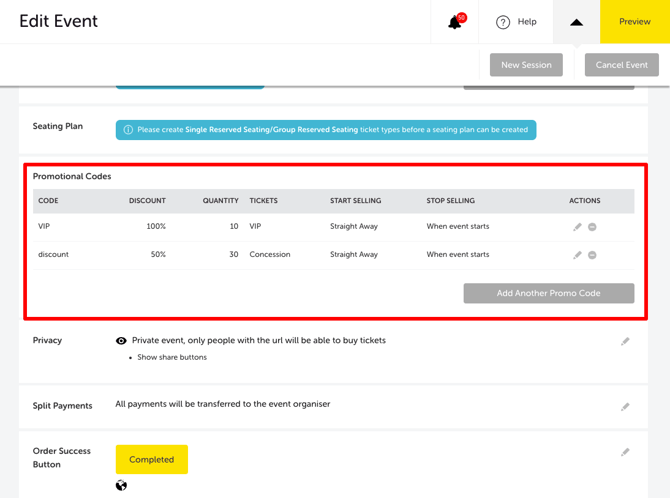
Click Save Changes. Your code will appear in the Promotional Codes list on the Edit Event page.
-
To add more codes, click Add Another Promo Code.
How Ticket Purchasers use the code
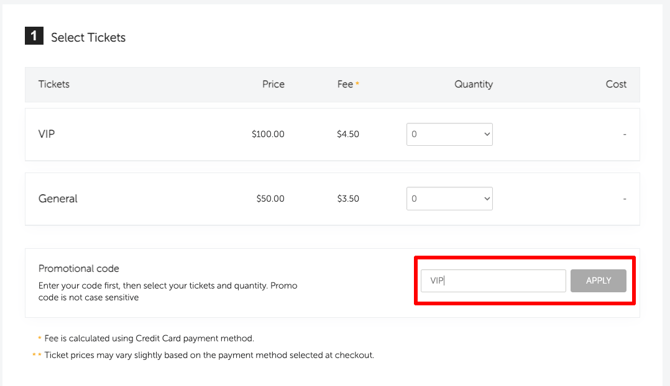
The promotional code box appears on the ticket selection page, below the list of tickets. Ticket purchasers should enter the code before selecting their ticket quantity.
- The ticket purchaser enters the code in the Code field.
- They click Apply.
- If the code is valid, a green label appears below the applicable ticket type (e.g. "VIP code applied") and the discounted price is shown, with the original price struck through.
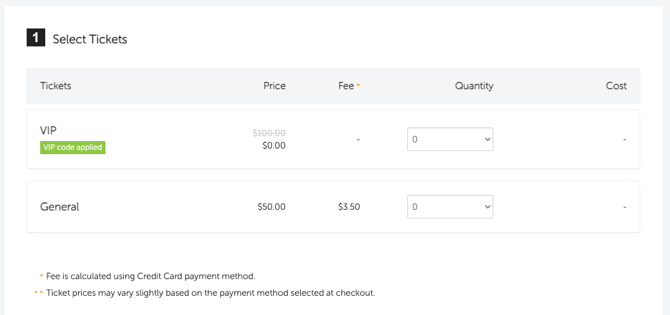
- The ticket purchaser then selects their quantity and proceeds to checkout.
Tracking Promo Code Performance
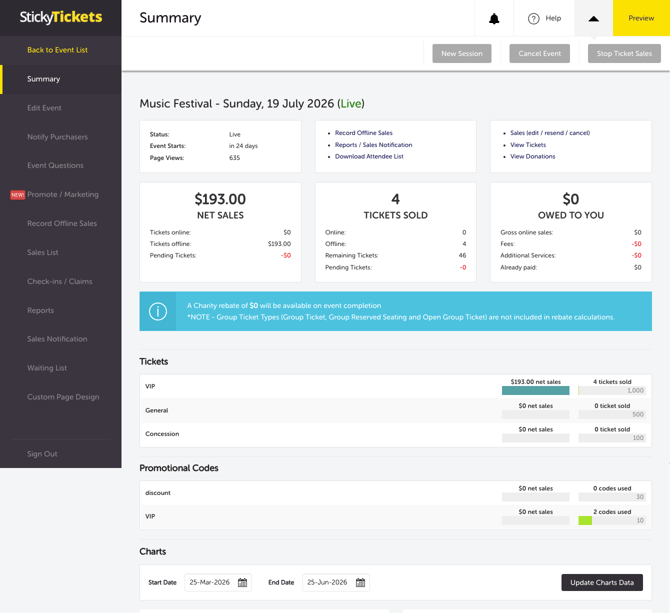
Once a code has been used, you can track its performance in two places:
- Event Summary page — shows how many times each code has been used
- Sales page — results can be viewed and downloaded
Most Common Scenarios and Questions
A ticket purchaser says the code isn't working.
-
Check the following: the code hasn't reached its Code Quantity limit; the Expiry Date hasn't passed; the Valid From date has been reached; and the code is assigned to the ticket type the ticket purchaser is trying to purchase. Also, ask the ticket purchaser to check they've entered the code correctly — with no extra spaces before or after the code.
The discount isn't showing after the code is entered.
-
The ticket purchaser may have selected their ticket quantity before entering the code. The promotional code must be entered first, and then the ticket quantity is selected. Ask them to refresh the page and try again in the correct order.
The promo code isn't appearing in the Promotional Codes list.
-
The code may not have been saved. Return to the Promotional Codes section and check whether the code appears. If not, click Create A Promo Code and re-enter the details.
Can I create multiple promo codes for the same event?
-
Yes — click Add Another Promo Code from the Promotional Codes section on the Edit Event page. There is no limit on the number of codes you can create.
Can I edit or delete a promo code after creating it?
-
Yes — in the Promotional Codes list, click the edit (pencil) icon to update a code's settings, or the delete (minus) icon to remove it.
Will ticket purchasers know a promo code exists?
-
Only if you tell them. The promotional code box always appears on the ticket selection page, but ticket purchasers won't know what code to enter unless you share it with them directly.
Does the discount apply to the booking fee?
-
The discount applies to the ticket price. The booking fee is calculated on the discounted ticket price if a percentage discount is used, or on the remaining ticket price if a dollar discount is used.
Can I use promo codes with sub-tickets?
-
Promo codes can only be applied to parent tickets — not to sub-tickets.
Can I make a ticket free using a promo code?
-
Yes — set the discount to 100% or enter the full ticket price as a dollar discount.
Need more help?
If you need help setting up promotional codes, contact our support team.