You can add a dietary requirement or allergy question to your event's checkout form in two ways: ask it once per order (for the person making the booking), or ask it for each individual ticket holder in the order.
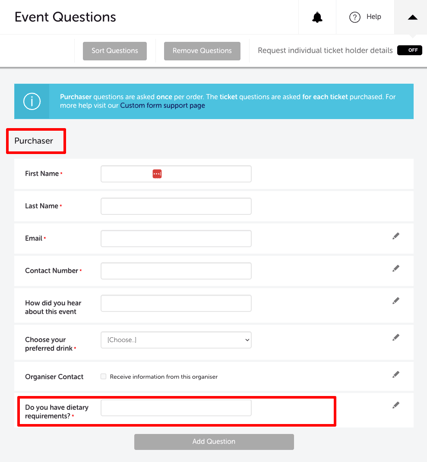
Option 1 — Ask the purchaser once per order
Use this if you only need one set of dietary information per booking — for example, when most bookings are for a single person.
- Log in and open your event.
- In the left sidebar, click Event Questions.
- In the Purchaser section, click Add Question.
- Select Free Text Entry as the question type.
- Enter your question (e.g. "Do you have any dietary requirements or allergies?").
- Tick Online Sales under Required Field if you want this to be mandatory at checkout. Leave unticked to make it optional.
- Click Save Question.
Option 2 — Ask each individual ticket holder
Use this when you need dietary information from every attendee separately — for example, a table of 10 at a gala dinner.
- Log in and open your event.
- In the left sidebar, click Event Questions.
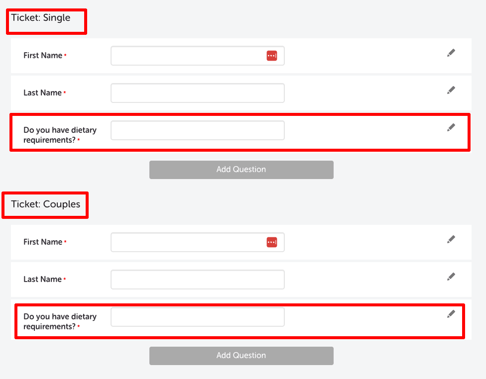
- Toggle Request individual ticket holder details to ON at the top of the page.
- Each ticket type will now show its own questions section. Scroll to the relevant ticket type section and click Add Question.
- Select Free Text Entry as the question type.
- Enter your question (e.g. "Do you have any dietary requirements or allergies?").
- Tick Online Sales under Required Field if required.
- Click Save Question.
How to Access the Responses
Once ticket purchasers have completed their bookings, you can view and export dietary responses from the Reports section.
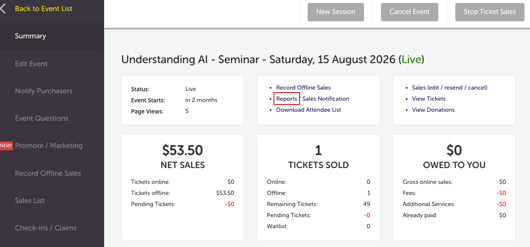
- Go to your event and click Reports in the left sidebar, or click the Reports link in the Summary tab.
- Choose one of the following reports:
| REPORT NAME | WHAT IS INCLUDED |
| Ticket List | Ticket-level data, including ticket question responses — best for per-ticket dietary information |
| Ticket Address List | Purchaser details and address information |
| Export Sales, Address & Tickets | Full export including prices, fees, and all custom question responses |
Download the report as a CSV file to sort and prepare your catering requirements.
Most Common Scenarios and Questions
I can't see the dietary question appearing in the per-ticket sections.
-
Make sure the Request individual ticket holder details toggle is set to ON at the top of the Event Questions page. The per-ticket sections only appear when this toggle is enabled.
The dietary question isn't showing at checkout.
-
Check that the question has been saved — return to Event Questions and confirm it appears in the relevant section with a pencil icon next to it.
Should I use Option 1 or Option 2?
-
Use Option 1 (once per order) if most of your bookings are for one person, or if you only need one set of dietary info per table booking. Use Option 2 (per ticket holder) if you need to know the dietary requirements of every individual attendee — for example, a conference with individual name badges and meals.
Can I make the dietary question optional?
-
Yes — leave the Required Field checkboxes unticked when adding the question. Ticket purchasers will see the question but won't be forced to answer it.
Can I add this question after the event is already live?
-
Yes — you can add questions to the checkout form at any time, including after the event is live and tickets have been sold. The question will appear for all future purchases.
Can I ask for more detail — for example, a specific allergy list?
-
Yes — use Single Choice or Multiple Choice question types instead of Free Text Entry to provide a list of common allergies or dietary preferences for ticket purchasers to select from. See: How to create and manage custom questions for your event.
Need more help?
If you need help collecting dietary information from your attendees, contact our support team.