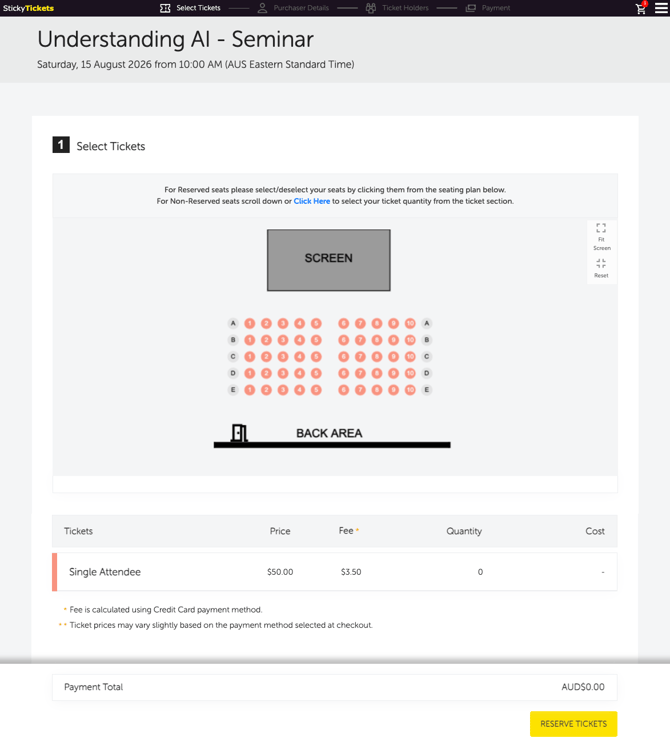
A seating plan lets ticket purchasers select specific seats when buying tickets. Once published, the plan appears on your event page so attendees can see the layout and choose their preferred seats.
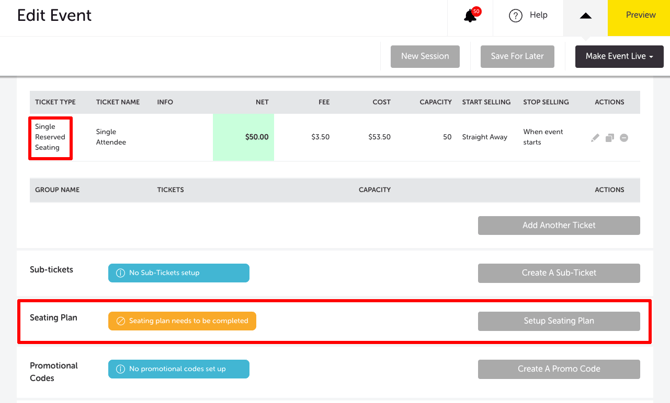
Prerequisite: Your event must have at least one Single Reserved Seating or Group Reserved Seating ticket type before you can create a seating plan. See: How to add and configure tickets for your event.
Step 1 — Access the seating plan editor
- Go to My Events and open your event.
- Click the Edit Event tab.
- Scroll to the Seating Plan section.
- Click Setup Seating Plan.
- Enter a name for your seating plan (e.g. "Auditorium A") and click Create.
The seating plan editor opens. The right panel contains the tools you'll use to build your layout.
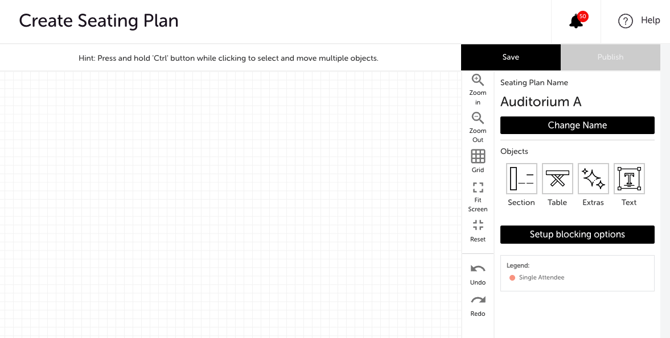
HINT: Press and hold Ctrl on your keyboard while clicking to select and move multiple objects at the same time.
Step 2 — Add objects to your layout
Use the Objects panel on the right to add elements to your plan. Click the object type you want to add.
Section
Use sections for theatre-style rows of seats (e.g. Left, Centre, Right).
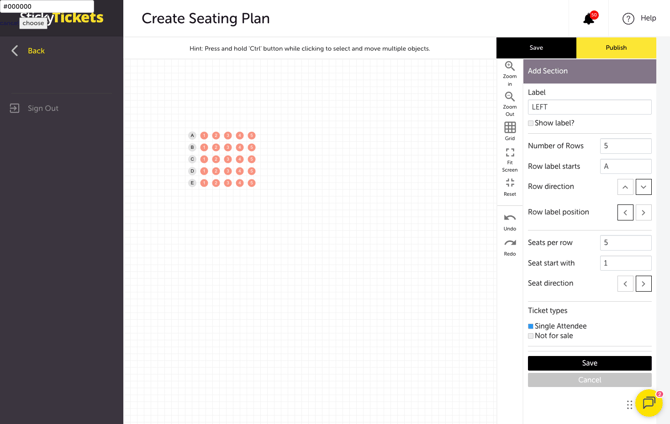
| FIELD | WHAT TO ENTER |
| Label | Name of the section (e.g. LEFT, CENTRE) |
| Show Label? | Tick to display the section name on the plan |
| Number of Rows | How many rows in this section |
| Row Label Starts | Starting label for rows (e.g. A, B, C or 1, 2, 3) |
| Row Direction | Which direction rows are numbered — up or down |
| Row Label Position | Whether row labels appear on the left or right side |
| Seats Per Row | Number of seats in each row |
| Seat Start With | Starting label for seat numbers |
| Seat Direction | Which direction seats are numbered — left or right |
| Ticket Types | Select the ticket type to assign to this section |
Click Save to add the section to your plan.
After saving:
- Click a section to select it. Use the Curve and Skew options in the right panel to adjust its shape.
- Use the Copy button to duplicate a section — useful for mirrored layouts. After copying, click the copied section and click Edit to rename it.
- To assign different ticket types to individual rows within a section, click the section, click Edit, and update the ticket type at the row level.
- To edit a single seat label, click the section, click Edit, and select the individual seat.
Table
Use tables for gala dinners, conferences, or any event with seated group arrangements.
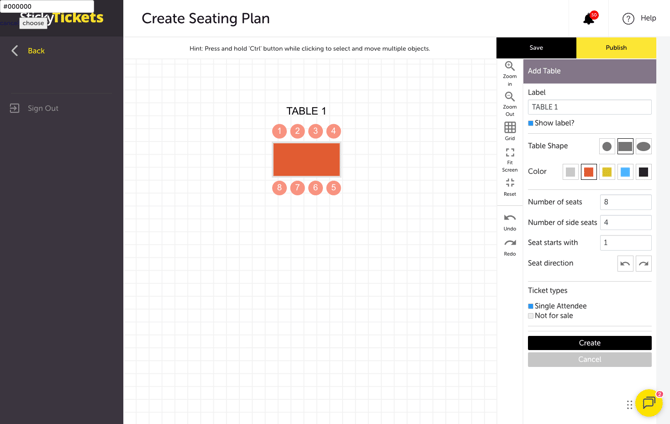
| FIELD | WHAT TO ENTER |
| Label | Name of the table (e.g. TABLE 1) |
| Show Label? | Tick to display the table name |
| Table Shape | Round, Rectangle, or Oval |
| Colour | Choose a colour for the table |
| Number of Seats | Total seats at the table |
| Number of side seats (rectangle only) | Seats per side — the system distributes remaining seats to the top and bottom |
| Seat Start With | Starting label for seat numbers |
| Seat Direction | Clockwise or counter-clockwise |
| Ticket Types | Select the ticket type to assign |
Click Create to add the table.
Use Copy to duplicate a table. Use Edit to change settings.
Extras
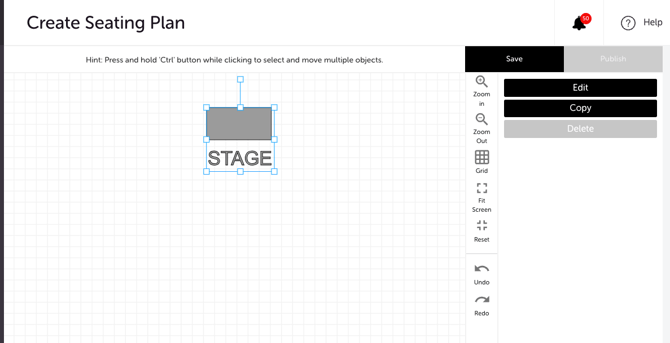
Use extras for non-seat objects on your plan — stage, screen, bar, entrance, staff area, etc. These are decorative elements that don't have seats assigned.
| FIELD | WHAT TO ENTER |
| Label |
Name of the element (e.g. STAGE, SCREEN) |
| Icon | Choose from 8 available icons (toilets, entrance, exit, bar, etc.) |
| Shape | Circle, triangle, or rectangle |
| Colour | Choose a background colour |
Click Create to place the element on the plan.
Text
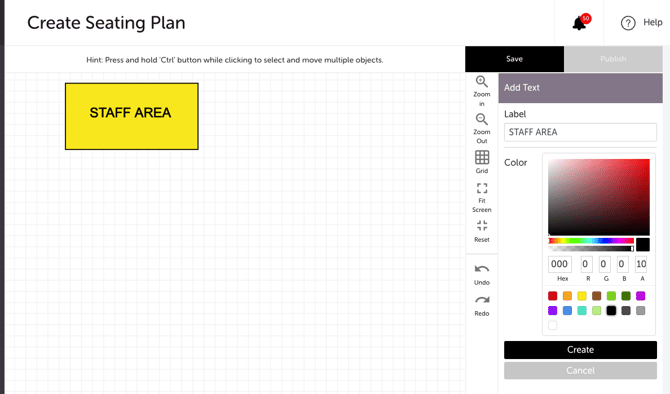
Use text for labels, zone names, or notes displayed on the seating plan. Enter the label text and choose a colour. Click Create to place it on the plan.
Step 3 — Use the editor tools
The left toolbar provides these controls:
| FIELD | WHAT TO ENTER |
| Zoom In / Zoom Out |
Magnify or reduce the view |
| Grid | Toggle the background grid on/off. The grid helps with alignment but won't appear on the published event page |
| Fit Screen |
Adjusts the view to fit the canvas on screen |
| Reset |
Returns the view to the default zoom level |
| Undo / Redo | Step backward or forward through your changes |
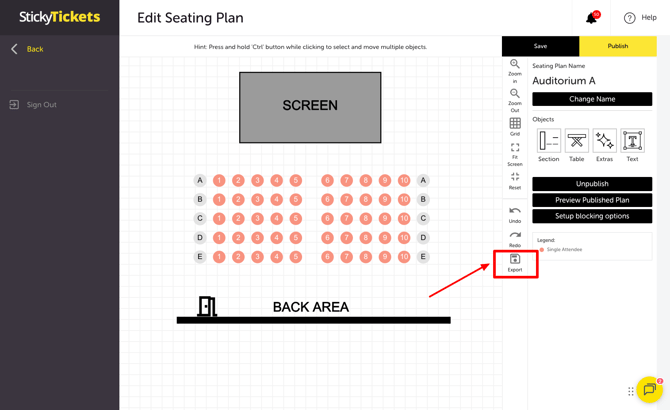
| Export | Download a PDF copy of the seating plan (available after publishing) |
Step 4 — Set up seat blocking (optional)
Seat blocking automatically marks a set number of seats on either side of each purchase as unavailable — useful for events where you want gaps between groups of attendees.
For full setup instructions, see: How to set up seat blocking for your seating plan.
Step 5 — Save and Publish
Click Save at any time to save your work in progress. The plan is not visible to ticket purchasers until it is published.
When your plan is ready, click Publish.
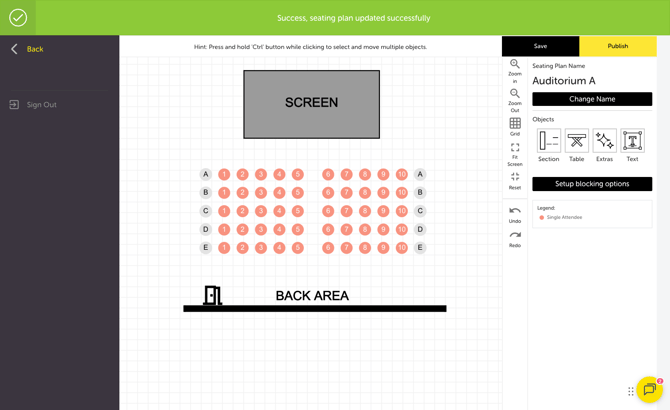
After publishing, the seating plan is confirmed in the Seating Plan section of your Edit Event page. Ticket purchasers will only be able to see and select seats once your event is live.
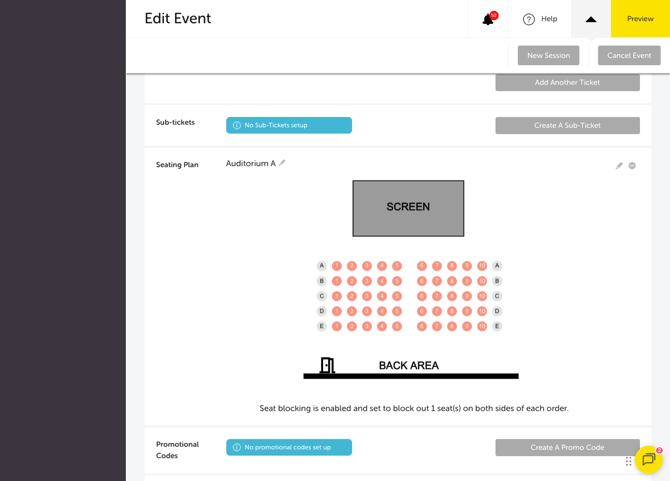
Once your event is live, the seating plan appears on the event page for ticket purchasers to view and select their seats.
Managing your seating plan after publishing
To make changes after publishing, click Unpublish in the right panel — the plan is no longer visible to ticket purchasers while you edit. Make your changes, click Save, then click Publish again to make it live.
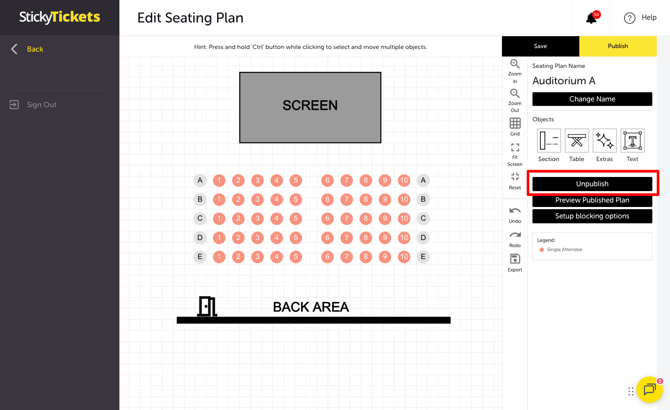
If tickets have already been sold: Be careful when unpublishing or removing seats that have been purchased. Unpublishing removes the seating plan from the event page temporarily and also hides reserved tickets — ticket purchasers will not be able to see or select seats until you republish. Existing seat assignments for sold tickets are not affected.
TIP: If you need to make changes in the seating plan and your event is already Live, we recommend stopping the ticket sales temporarily. This will avoid confusion or prevent issues, if someone was trying to book seats while you were editing.
Exporting a PDF Copy
After publishing, click the Export icon in the left toolbar to download a PDF copy of your seating plan for reference or printing.
Most Common Scenarios and Questions
"Seating plan needs to be completed" message on the Edit Event page.
-
This means your seating plan has been created but not yet published. Click Setup Seating Plan to open the editor, finish your layout, and click Publish.
The seating plan isn't showing on my event page.
-
The seating plan must be published before it appears. Open the seating plan editor and click Publish if the button is available. Also confirm that your event is Live — Pending events do not show to the public.
The Publish button is greyed out.
-
You must add at least one object (Section, Table, Extra, or Text) to the canvas before the Publish button becomes active.
A ticket type isn't appearing in the Ticket types panel when setting up a section or table.
-
Only Reserved Seating ticket types appear in the seating plan editor. Make sure your ticket type is set to Single Reserved Seating or Group Reserved Seating in the Edit Event → Tickets section.
Seat blocking isn't working.
-
Make sure you clicked Save after enabling seat blocking in the Manage Seat Blocking panel. If blocking is enabled, a confirmation note will appear on the Edit Event page.
Can I edit a seating plan after publishing?
Yes — click Unpublish, make your changes, then click Publish again. The plan is hidden from ticket purchasers while unpublished.
What ticket types work with a seating plan?
Single Reserved Seating and Group Reserved Seating ticket types. Standard Single or Group ticket types cannot be assigned to a seating plan.
Can I assign different ticket types to different sections or rows?
Yes — you can assign a different ticket type to each section, and within a section you can assign different ticket types to individual rows. Click Edit on a section to adjust row-level ticket type assignments.
Can I have multiple seating plans for one event?
-
No — each event can only have one seating plan. If your venue has multiple areas with different layouts, design them all within the same seating plan using separate sections, tables, and extra objects.
What does the Legend show?
-
The Legend shows the colour assigned to each ticket type on the seating plan. It is updated automatically as you assign ticket types to sections and tables.
What does "Seating plan needs to be completed" mean?
-
It means the seating plan has been started but not yet published. Ticket purchasers cannot see or select seats until the plan is published. Open the editor and click Publish.
Need more help?
If you need help creating your seating plan, contact our support team.