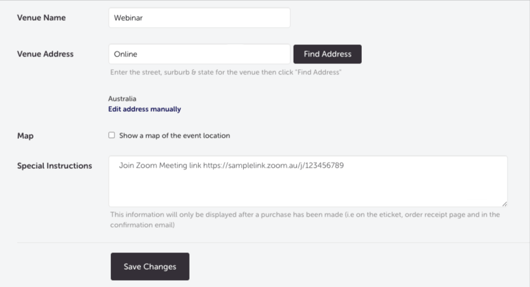
You can include a personalised message in the confirmation email and e-ticket that ticket purchasers receive after buying a ticket. This is done using the Additional Information field in the Event Location section of your event editor.
Use this field to include:
- Venue access instructions, parking details, or accessibility information
- Webinar or livestream join links
- Special event instructions (e.g. what to bring, dress code)
- Welcome messages or important reminders
How to add your message
- Log in and open the event you want to update.
- Click the Edit Event tab.
- Scroll to the Location section and click Edit.
- Find the Additional Information field and enter your message.
- Click Save Changes.
Adding a link? Any URL must start with http:// or https:// (e.g. https://zoom.us/j/yourmeetinglink). Links formatted this way will be clickable in the confirmation email.
Note: The Additional Information field is visible to anyone who purchases a ticket. Do not include sensitive or time-limited information (such as a one-time access code) here — send those separately.
Where the message appears
Your Additional Information message appears in:
- The confirmation email sent to ticket purchasers after purchase
- The receipt PDF attached to the confirmation email
- The e-ticket PDF (if e-tickets are enabled for the event)
%20to%20my%20e-tickets%20and%20confirmation%20emails_2.png?width=466&height=527&name=I%20want%20to%20add%20a%20message%20(or%20link)%20to%20my%20e-tickets%20and%20confirmation%20emails_2.png)
Most Common Scenarios and Questions
My message isn't appearing in the confirmation email.
-
Check that you clicked Save Changes after entering the message. Return to the Location section and confirm the text is saved — it should be visible in the section summary on the Edit Event page.
My link isn't clickable in the confirmation email.
-
Make sure the URL starts with http:// or https://. Links without this prefix will appear as plain text rather than clickable links.
I need to update the message after tickets have been sold.
-
You can update the Additional Information field at any time. The updated message will appear in confirmation emails sent for future purchases. Existing ticket purchasers will not automatically receive the updated message — contact our support team if you need to resend confirmation emails with updated details.
Can I include multiple lines or separate sections in the message?
-
Yes — the Additional Information field accepts free text. Use line breaks to separate different pieces of information for readability.
Can I include a webinar link in this field?
-
Yes — this is one of the most common uses for this field. Make sure the URL starts with https:// so it appears as a clickable link. See: How to set up and manage a webinar or online event on Sticky Tickets.
Will the message appear on printed e-tickets?
-
Yes — the Additional Information message appears on the e-ticket PDF, which ticket purchasers can print or save to their phone.
Need more help?
If you need help adding a message to your confirmation emails, contact our support team.